Feature Overview
Direct Control Mode
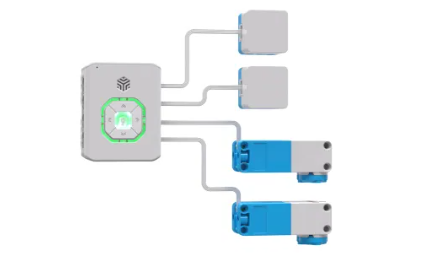
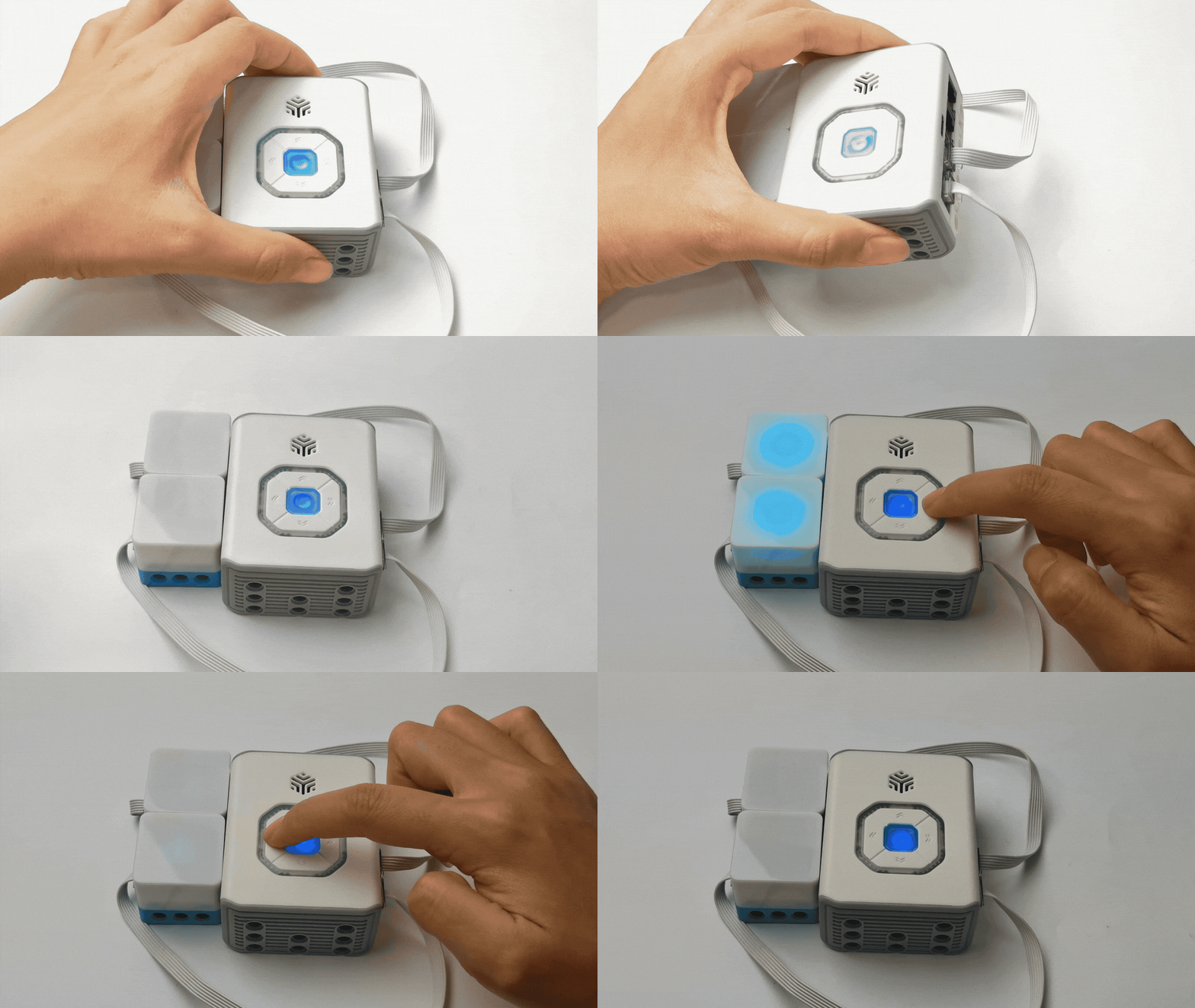
The direct control function does not require programming; actuators can be easily controlled via the hub. Users can directly operate actuators connected to different ports by using the up, down, left, and right buttons. Ports 2, 4, 6, and 8 can connect various actuators, offering convenient operation.
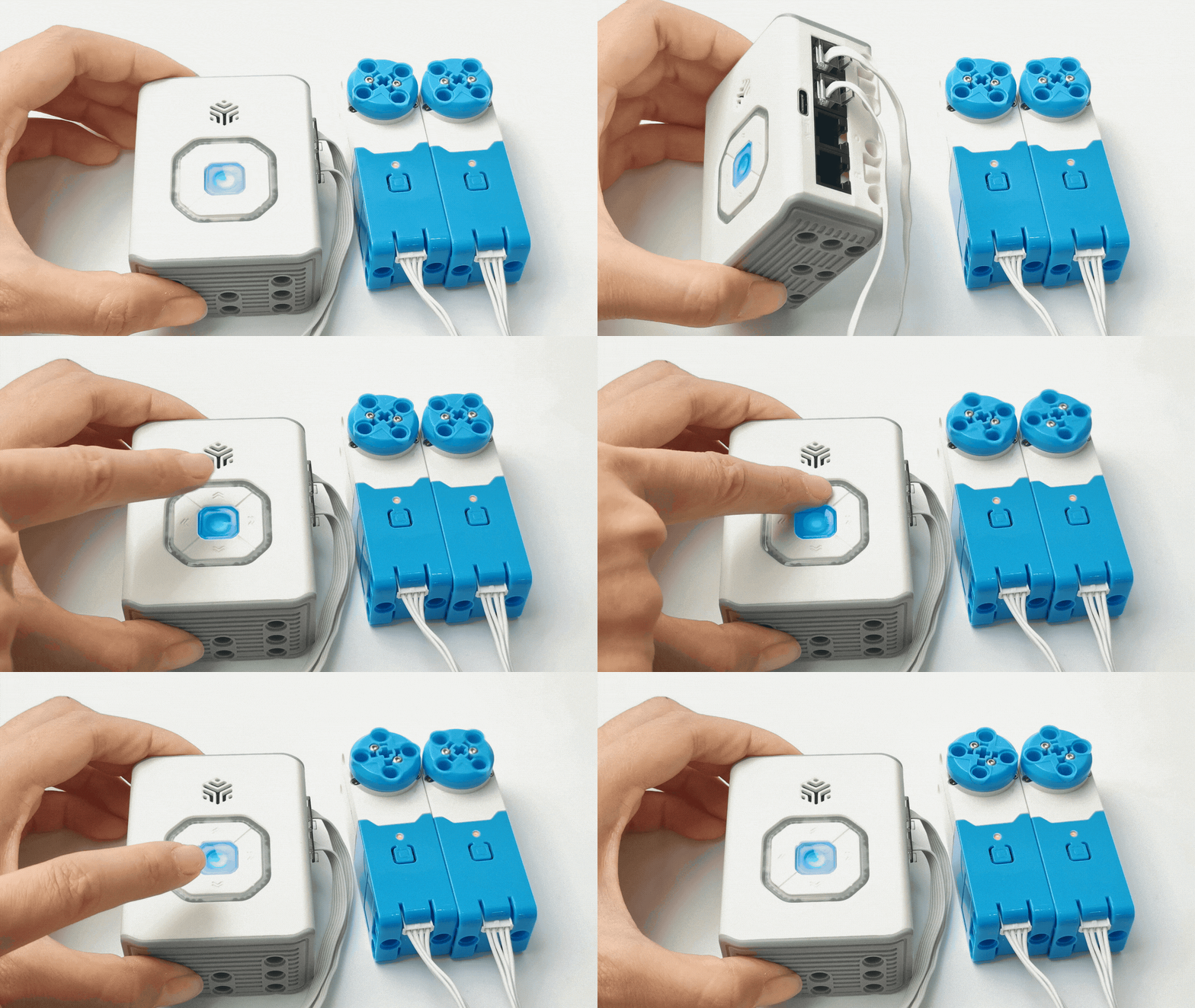
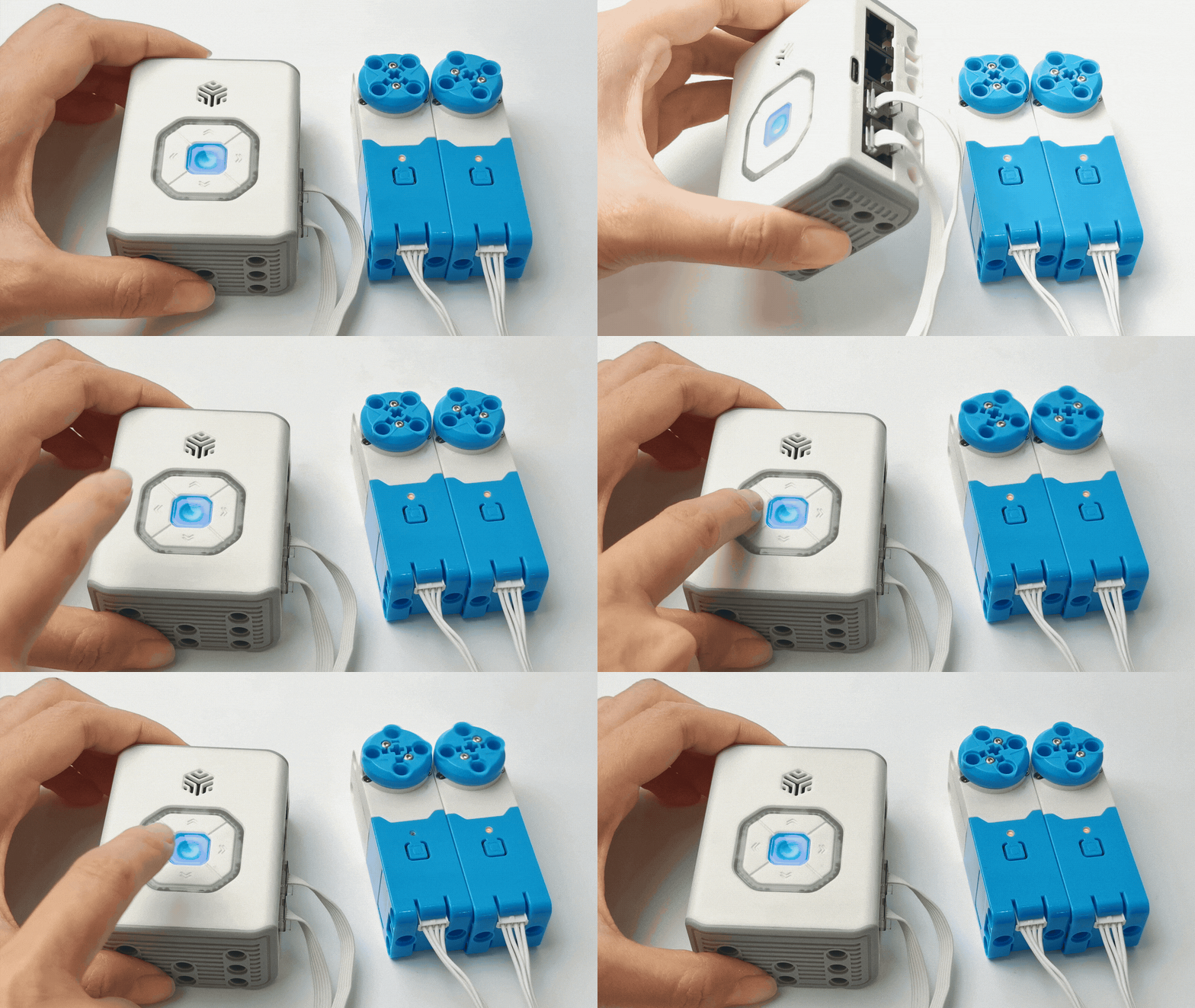
The Hub Controls Servo Motor
|
|
|---|---|
Motor connected to Ports 2 and 4: |
Motor connected to Ports 6 and 8: |
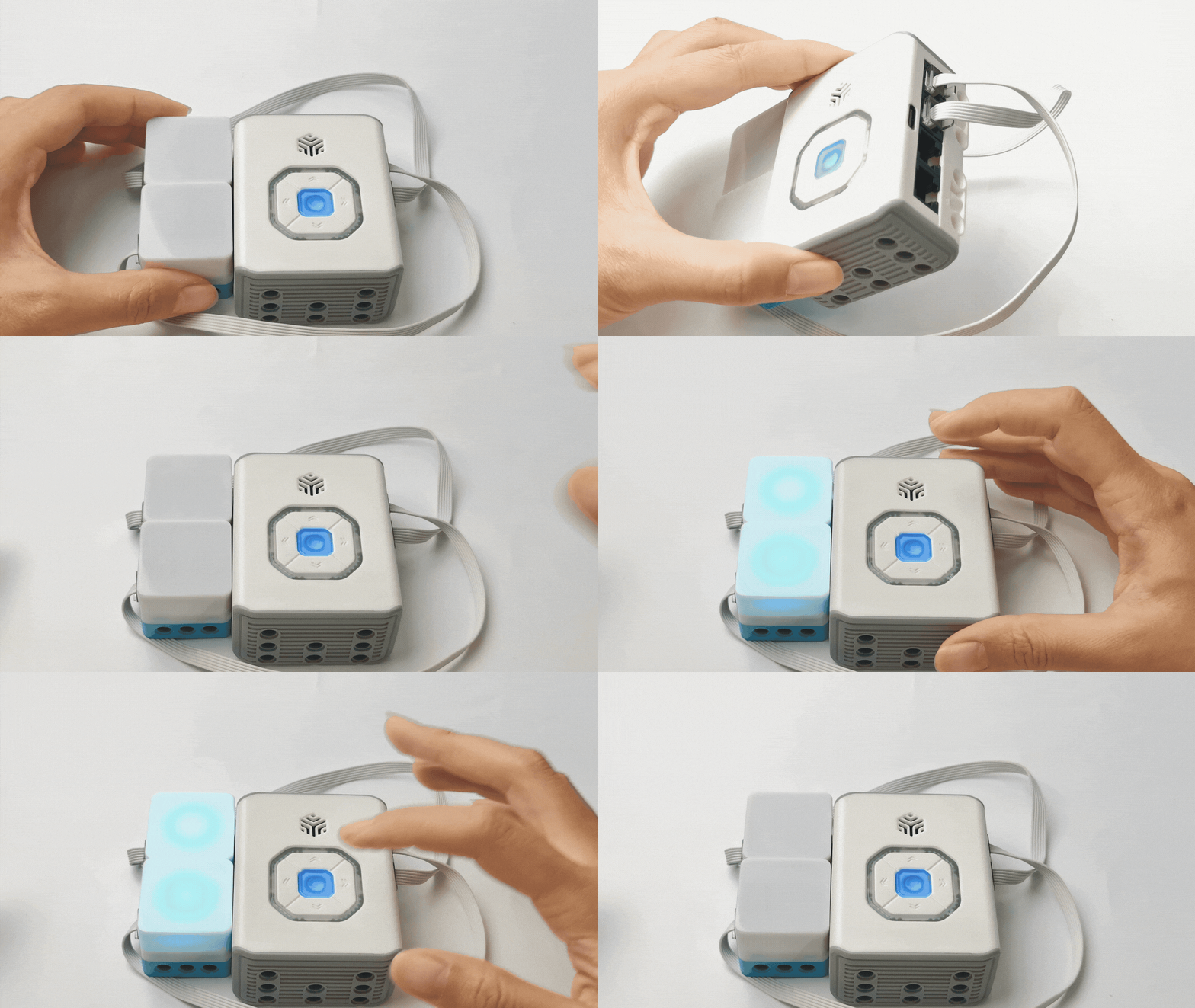
The Hub Controls Touch Color LED Sensor
|
|
|---|---|
LED connected to Ports 2 and 4: |
LED connected to Ports 6 and 8: |
Logic Control Mode
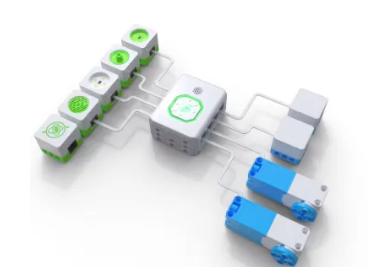
The logic control function requires no programming and allows actuators to be controlled effortlessly through various sensors. In this mode, input and output devices must be connected to paired symmetrical ports (e.g., Port 1 for input and Port 2 for output, or vice versa).
Encoder Sensor
|
|
|---|---|
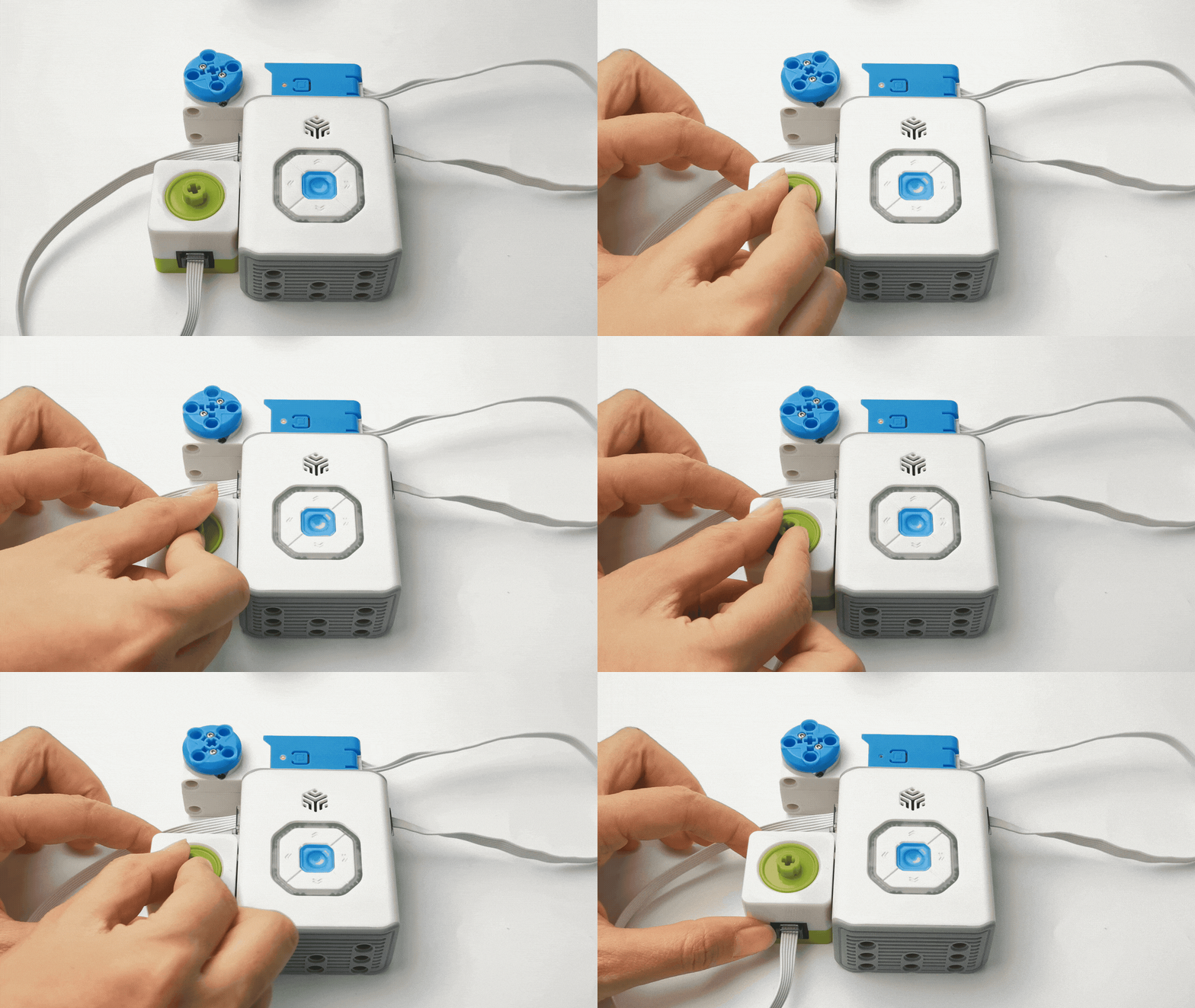
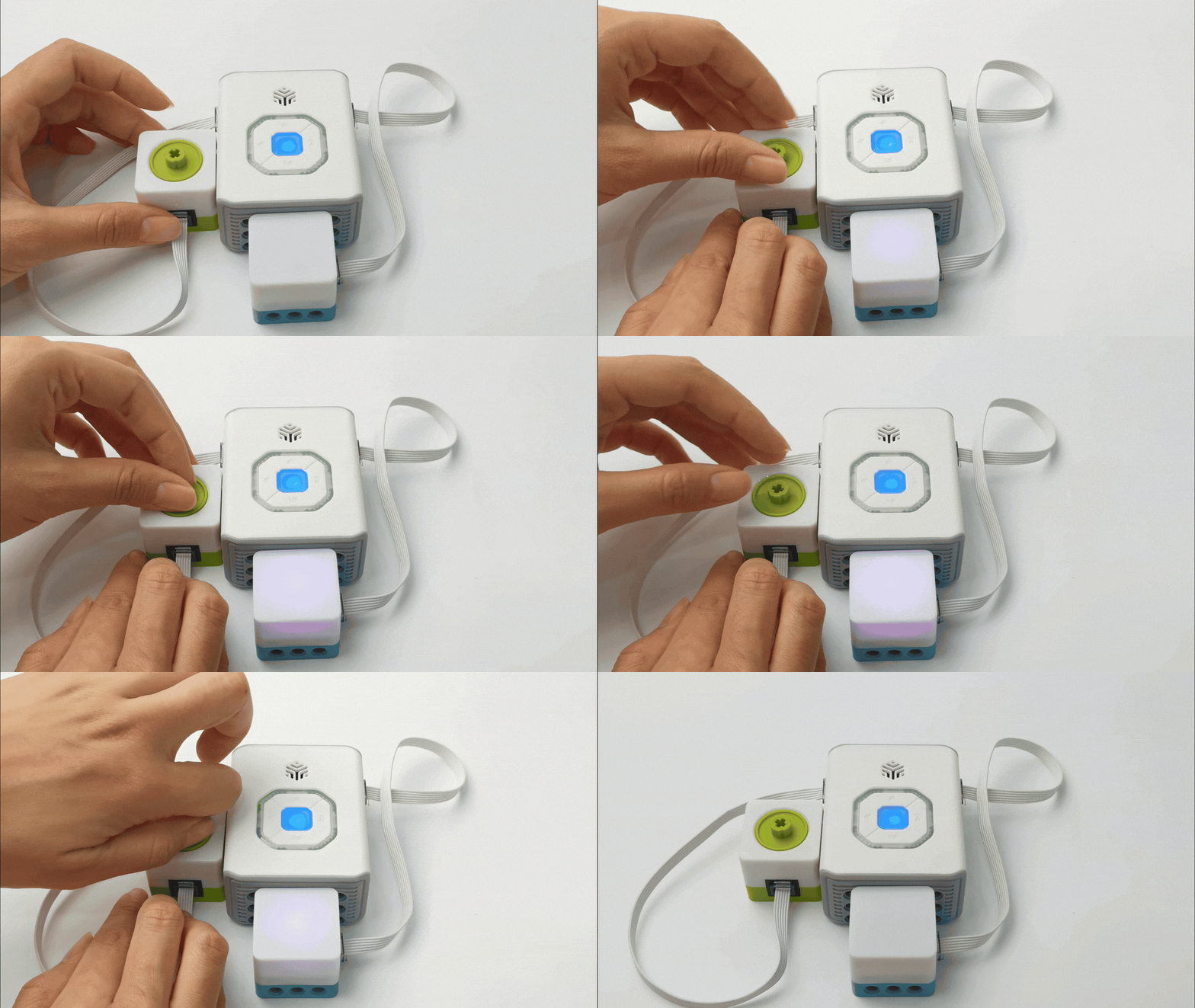
Clockwise rotation: Controls the servo motor’s forward rotation. |
Button press: Toggles the LED module on/off. In the “light on” state: |
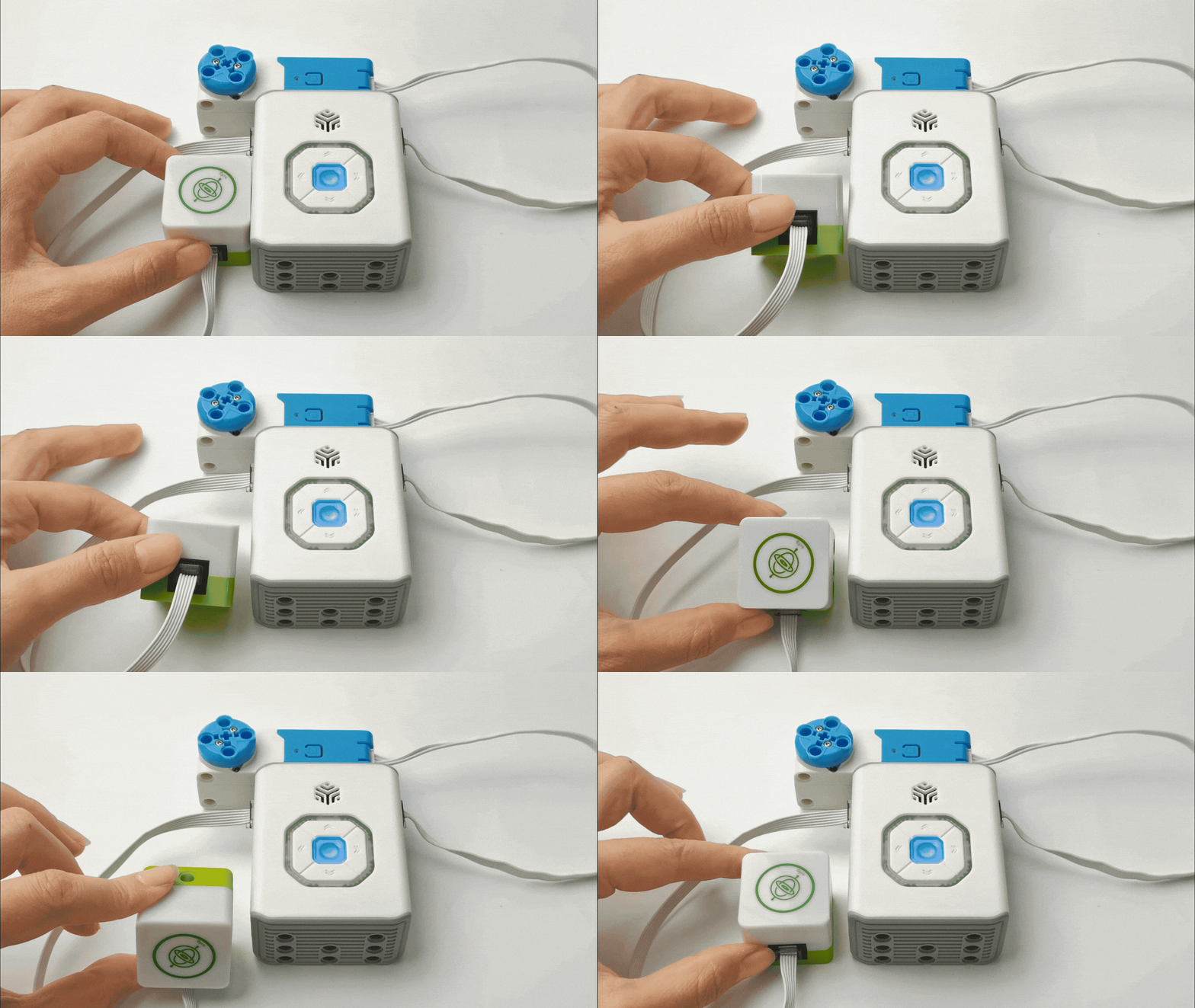
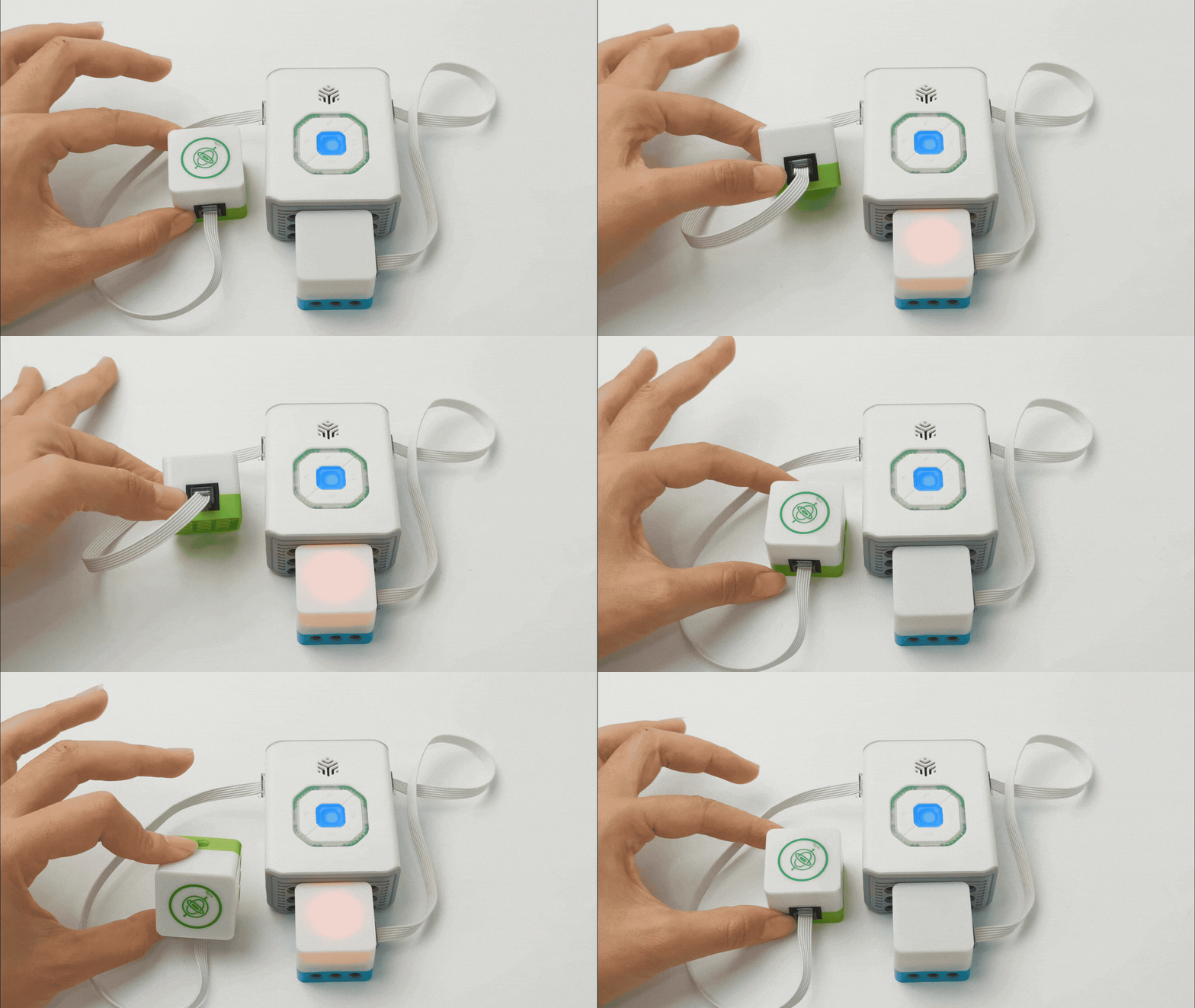
Gyroscope Sensor
|
|
|---|---|
Horizontal position: Stops the servo motor. |
Forward/backward tilt: Adjusts LED brightness (greater tilt = brighter LED). |
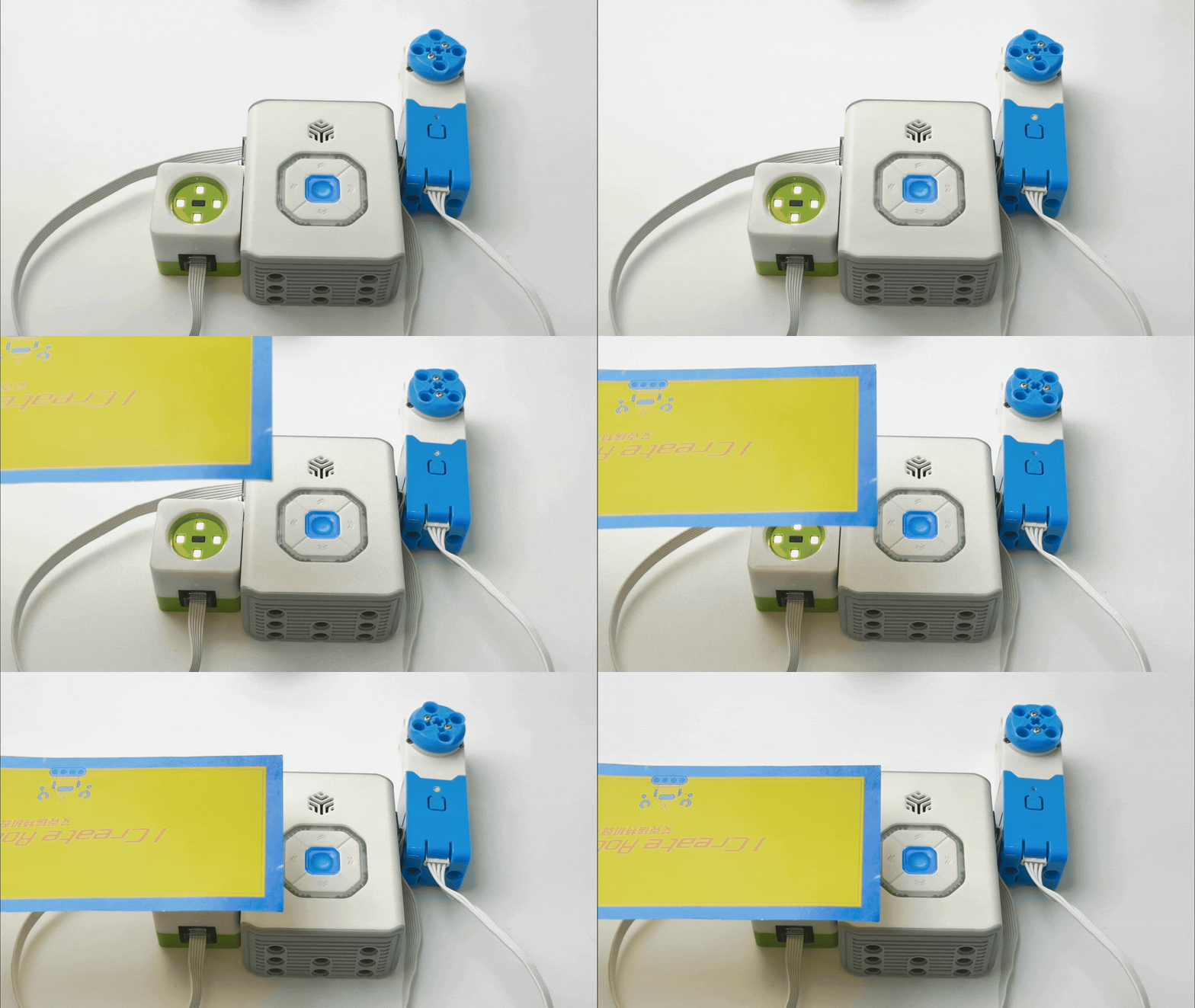
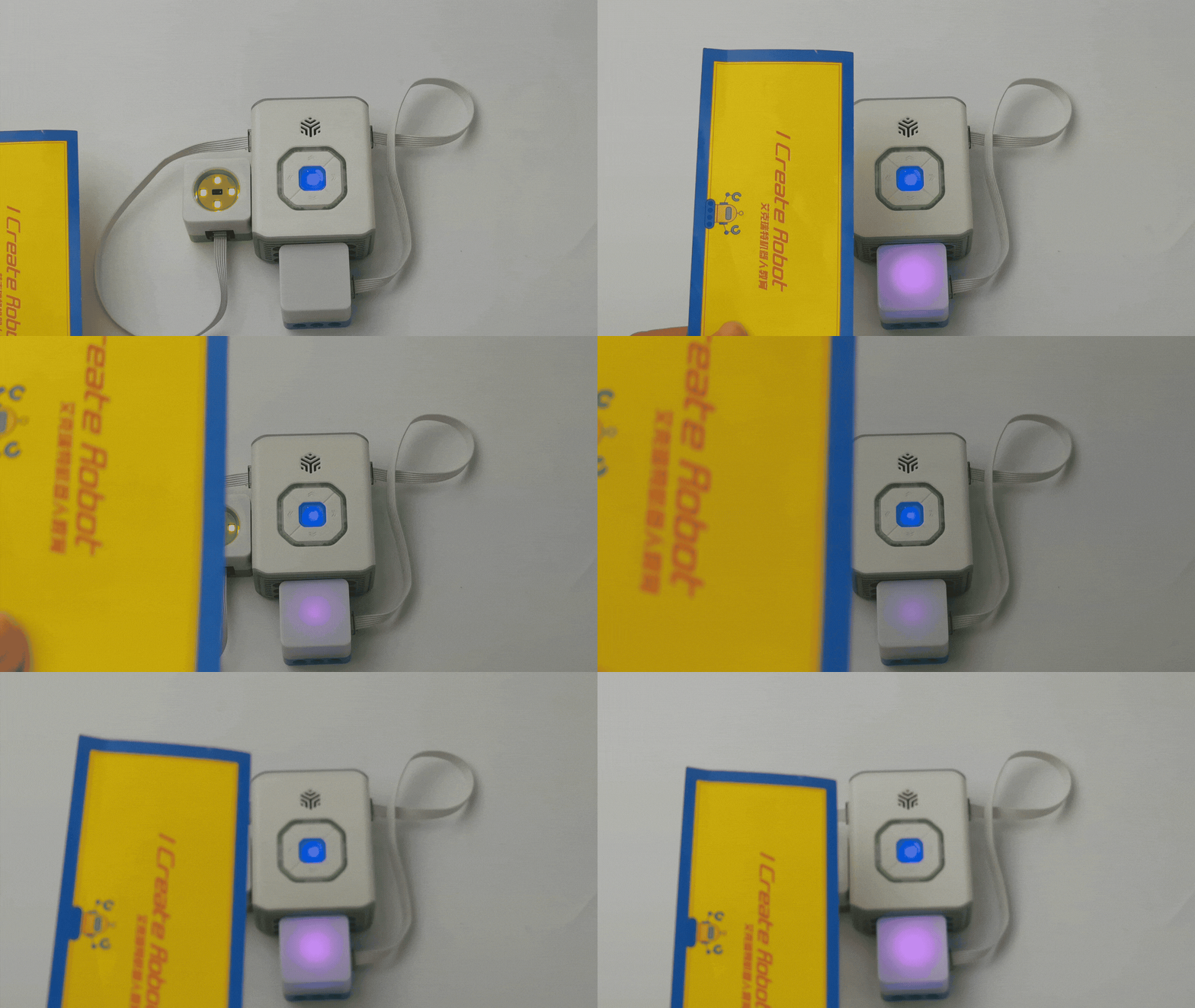
Distance Sensor
|
|
|---|---|
Detects object proximity to control motor speed and direction. |
By detecting the distance, you can control the brightness of the color LED sensor, the closer the distance, the higher the brightness. |
Sound Sensor
|
|
|---|---|
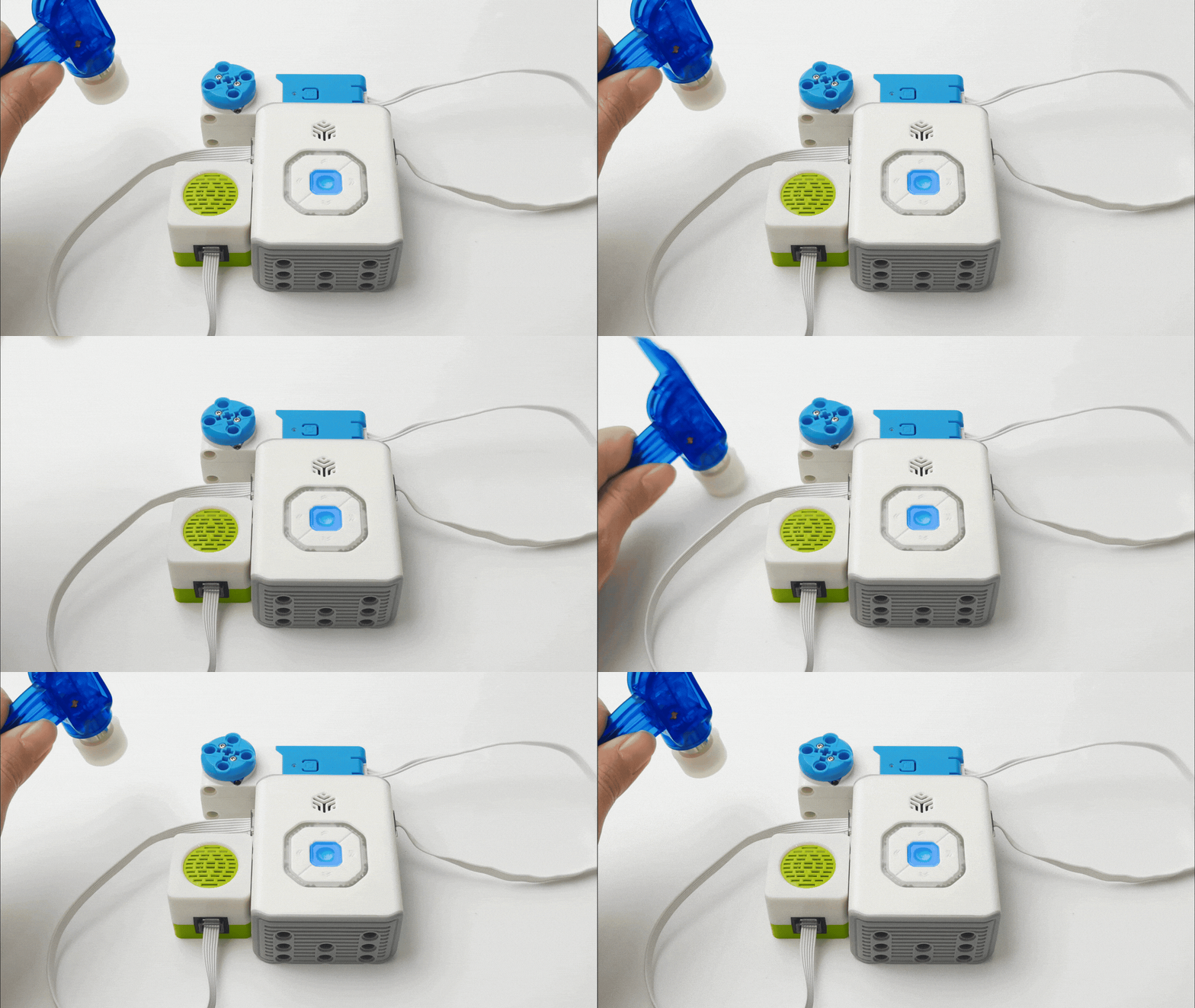
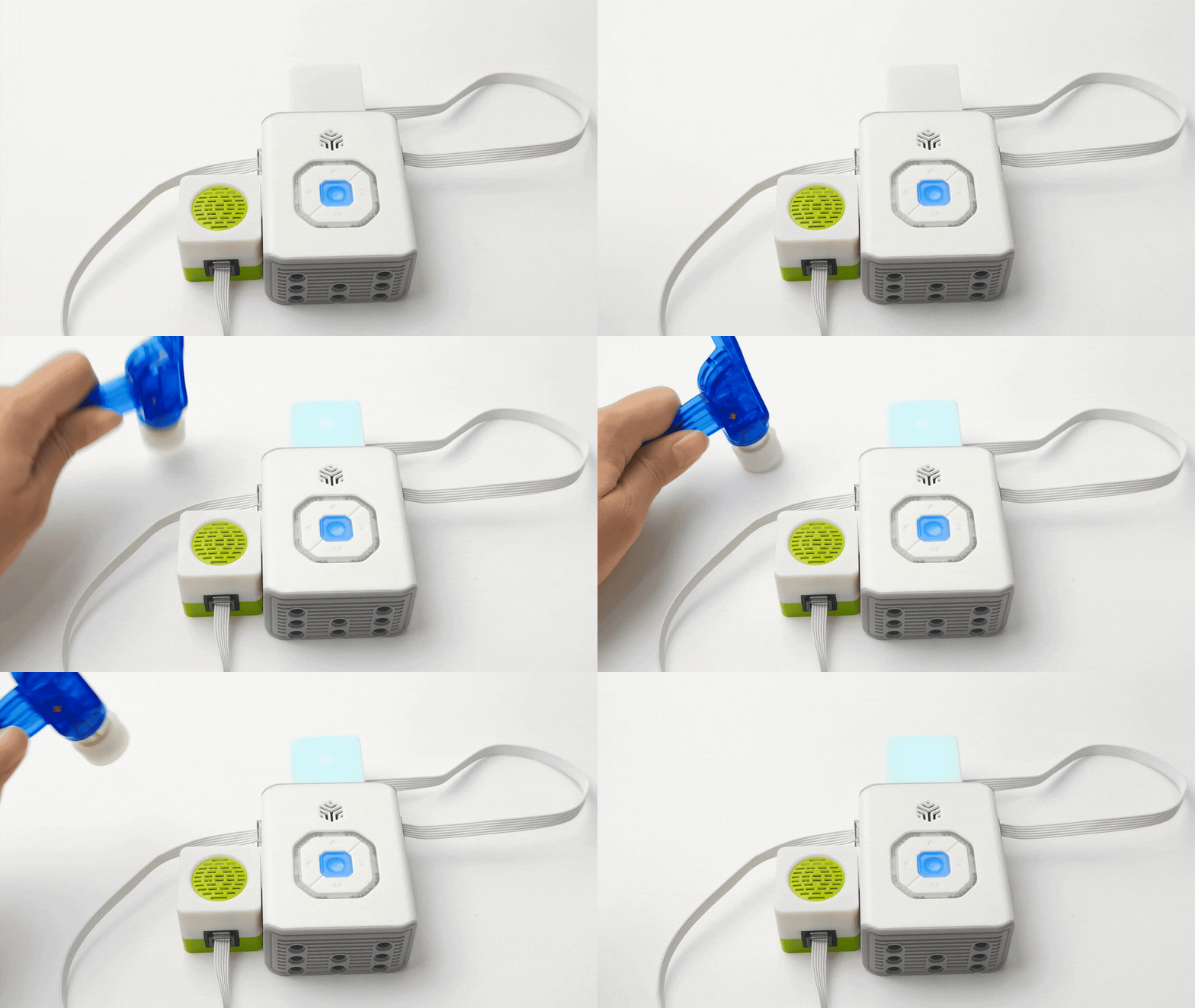
Detects sound to trigger: |
Detects sound to trigger: |
Multifunction Gesture Recognition Sensor
|
|
|---|---|
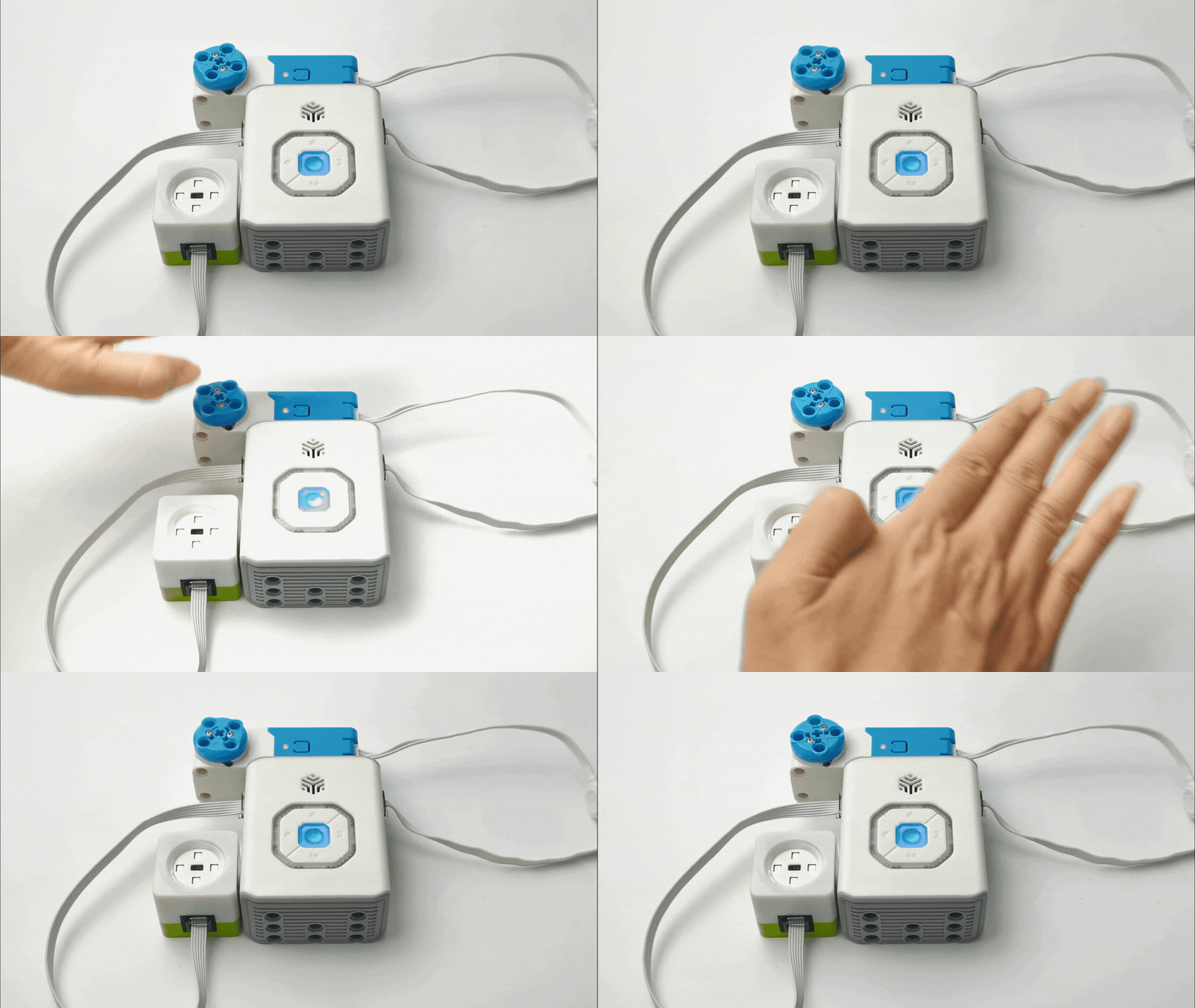
Controls Servo Motor: |
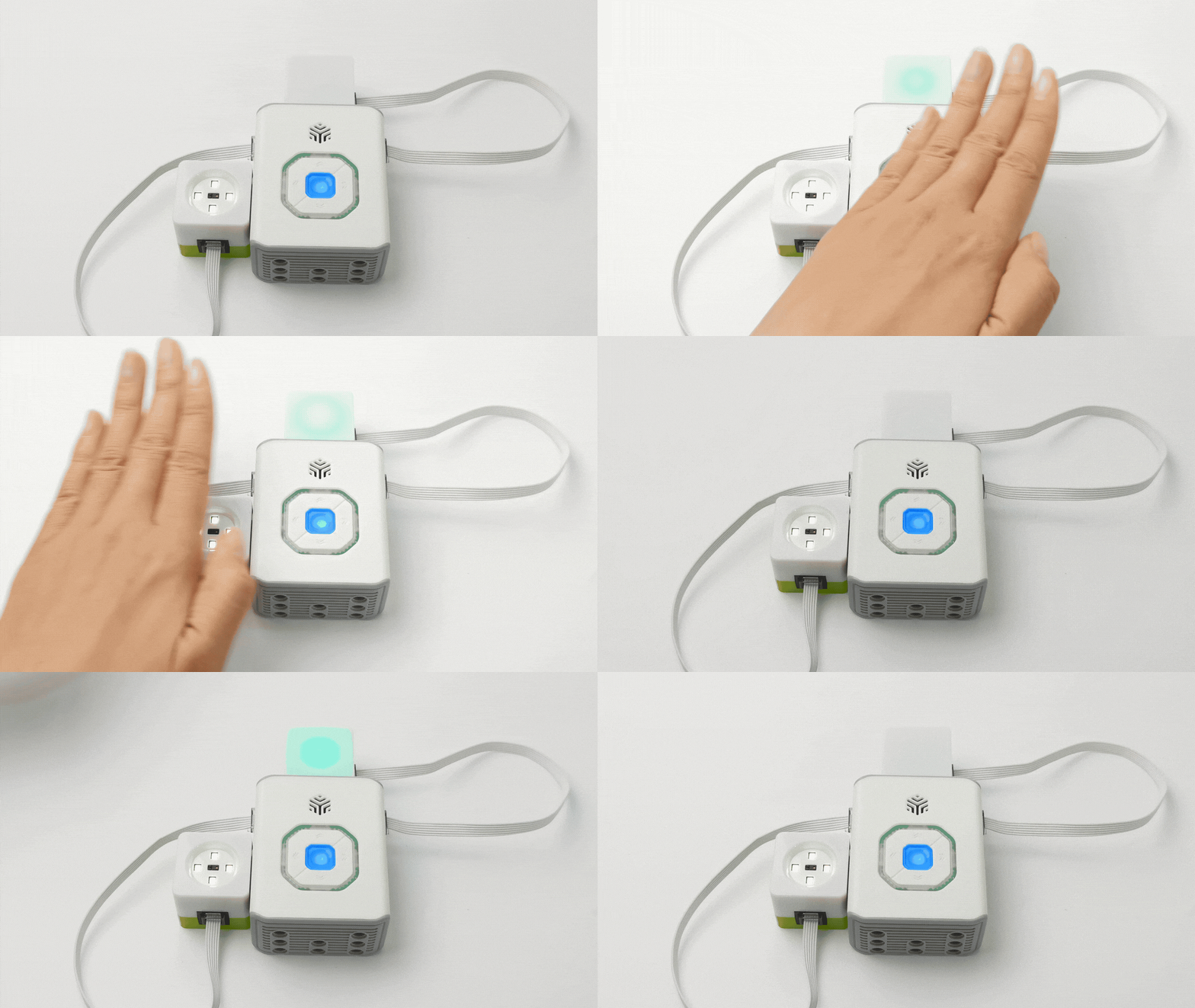
Controls LED Sensor: |
Logic Restriction Mode
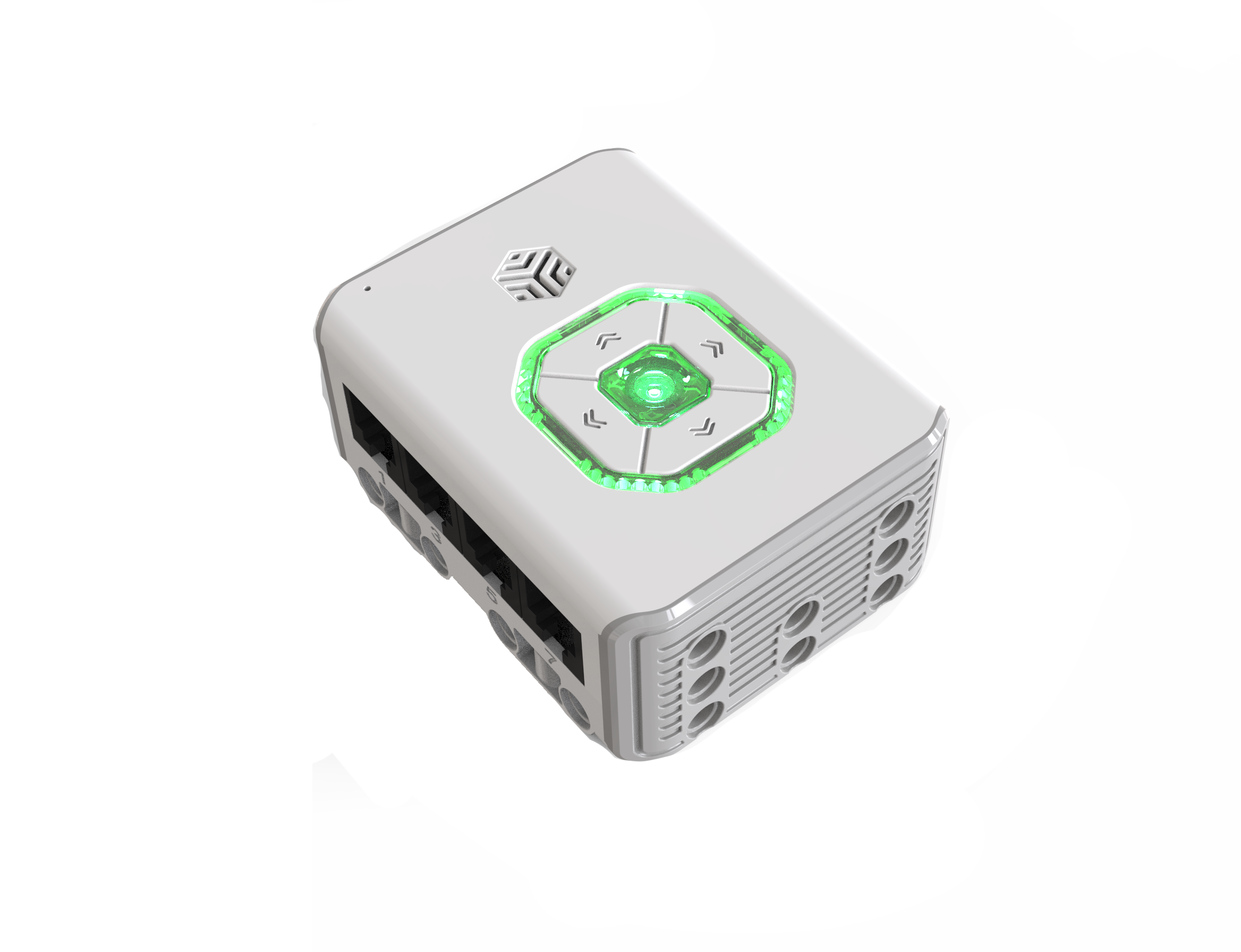
This mode disables all intelligent functions (direct and logic control), leaving only basic hardware capabilities. It is useful for limiting device behavior, hardware testing, or specific use cases.
Activation:
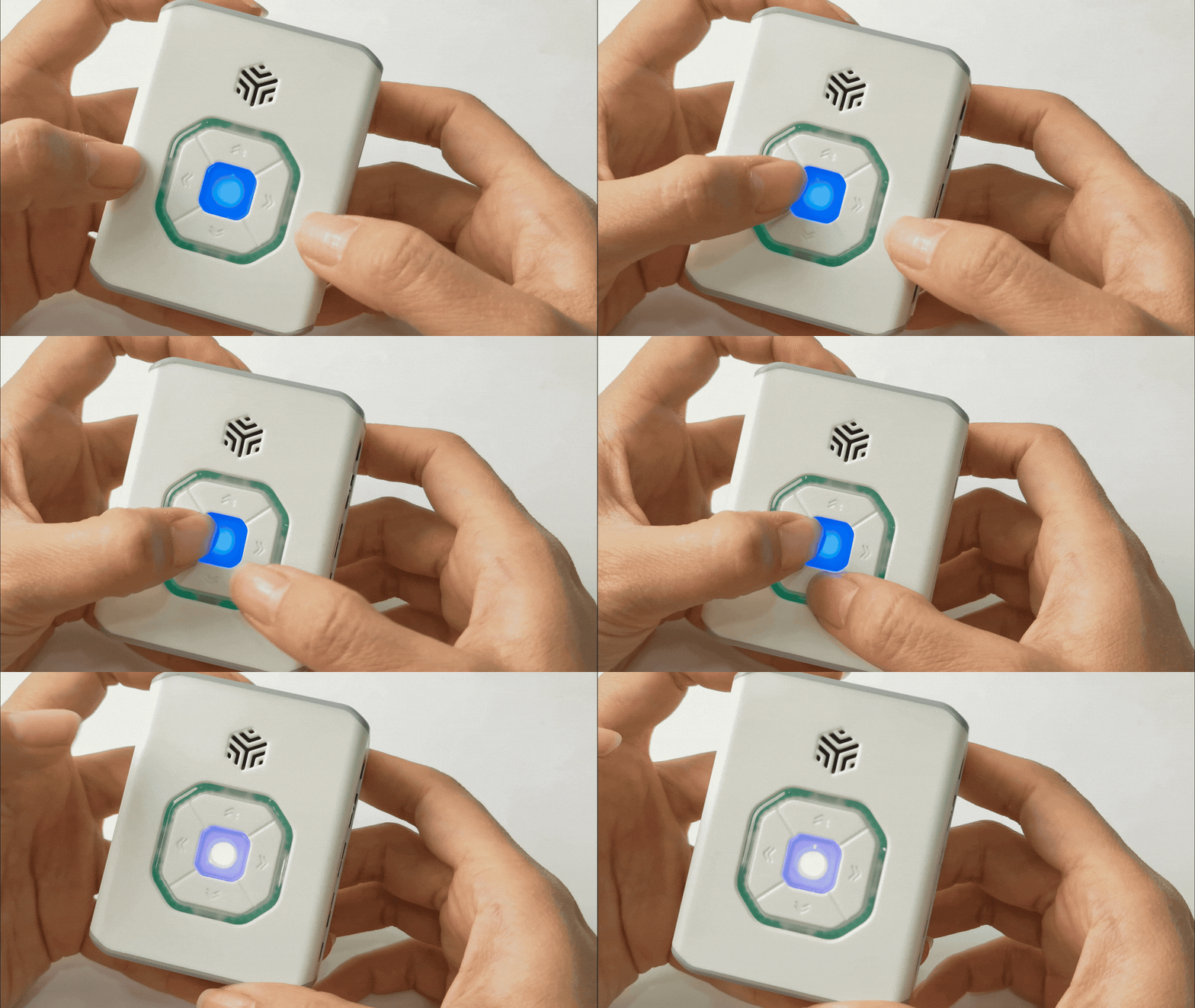
Press and hold the “Power Button,” then press the “Down Button.” A purple breathing light indicates successful activation.
Deactivation:
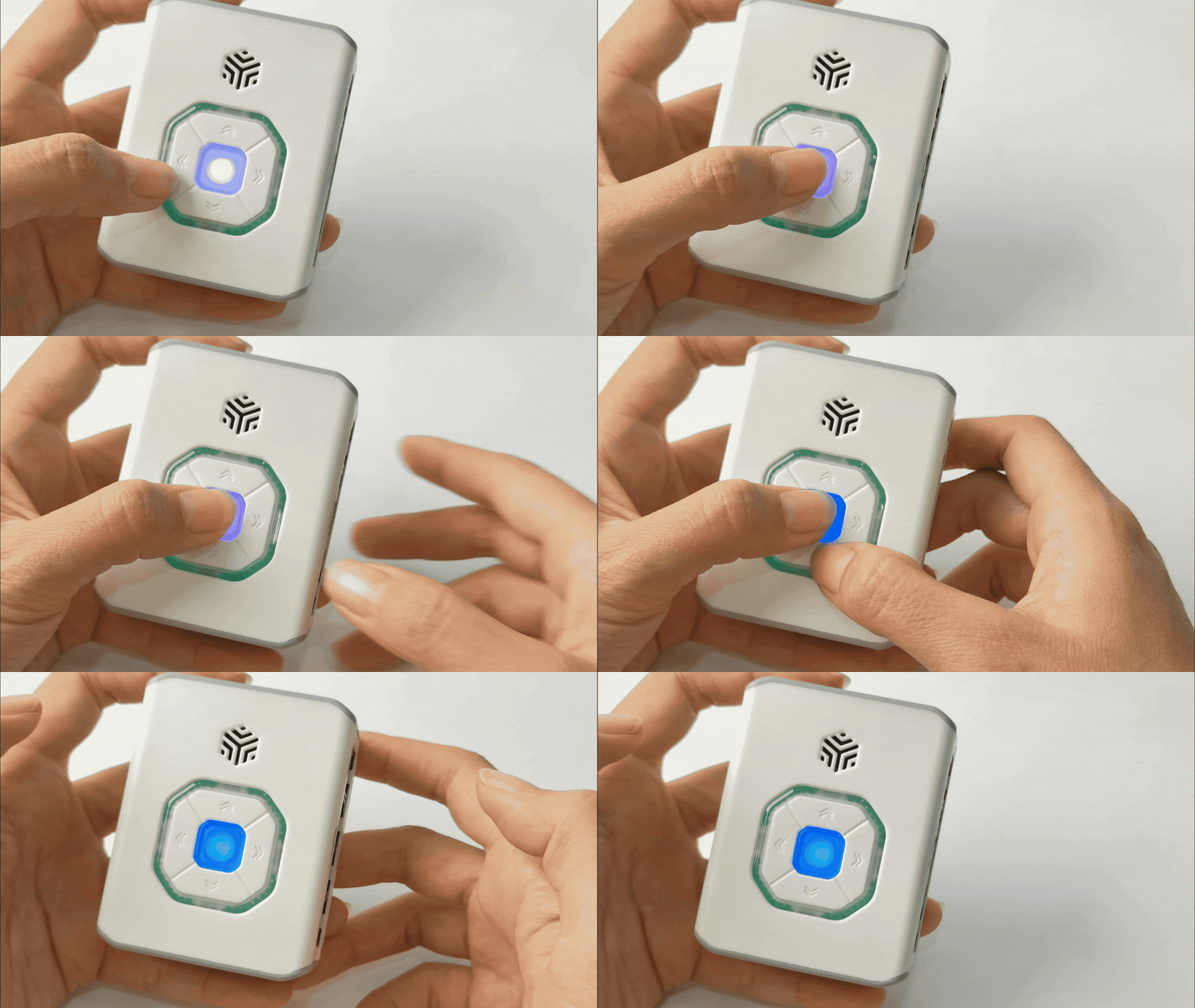
Press and hold the “Power Button,” then press the “Down Button” again.
Activation and deactivation require holding the buttons for over 3s. Otherwise, the device will shut down, exiting the mode automatically.
|
|
|---|---|
Activation |
**Deactivation ** |
Programming Control Mode
ICBricks offers various programming options to suit users of different skill levels, from beginners to advanced users, ensuring an enjoyable and fulfilling learning experience.
ICBricks Mobile Programming Mode
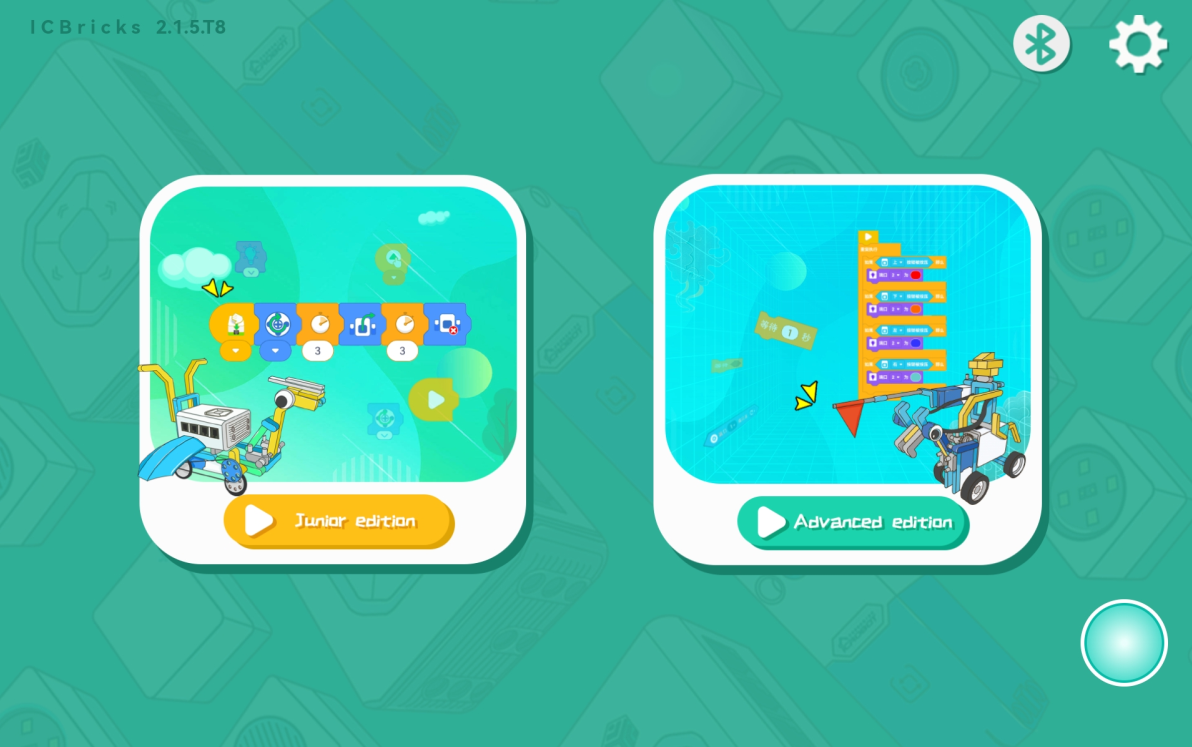
The ICBricks programming software is a mobile graphical programming platform designed for the ICBricks 2.0 Core set. Compatible with Android and iOS devices, it supports sensor and actuator control, Bluetooth remote control, and multiple programming modes, offering a rich programming experience.
|
|
|---|---|
Beginner Version |
Advanced Version |
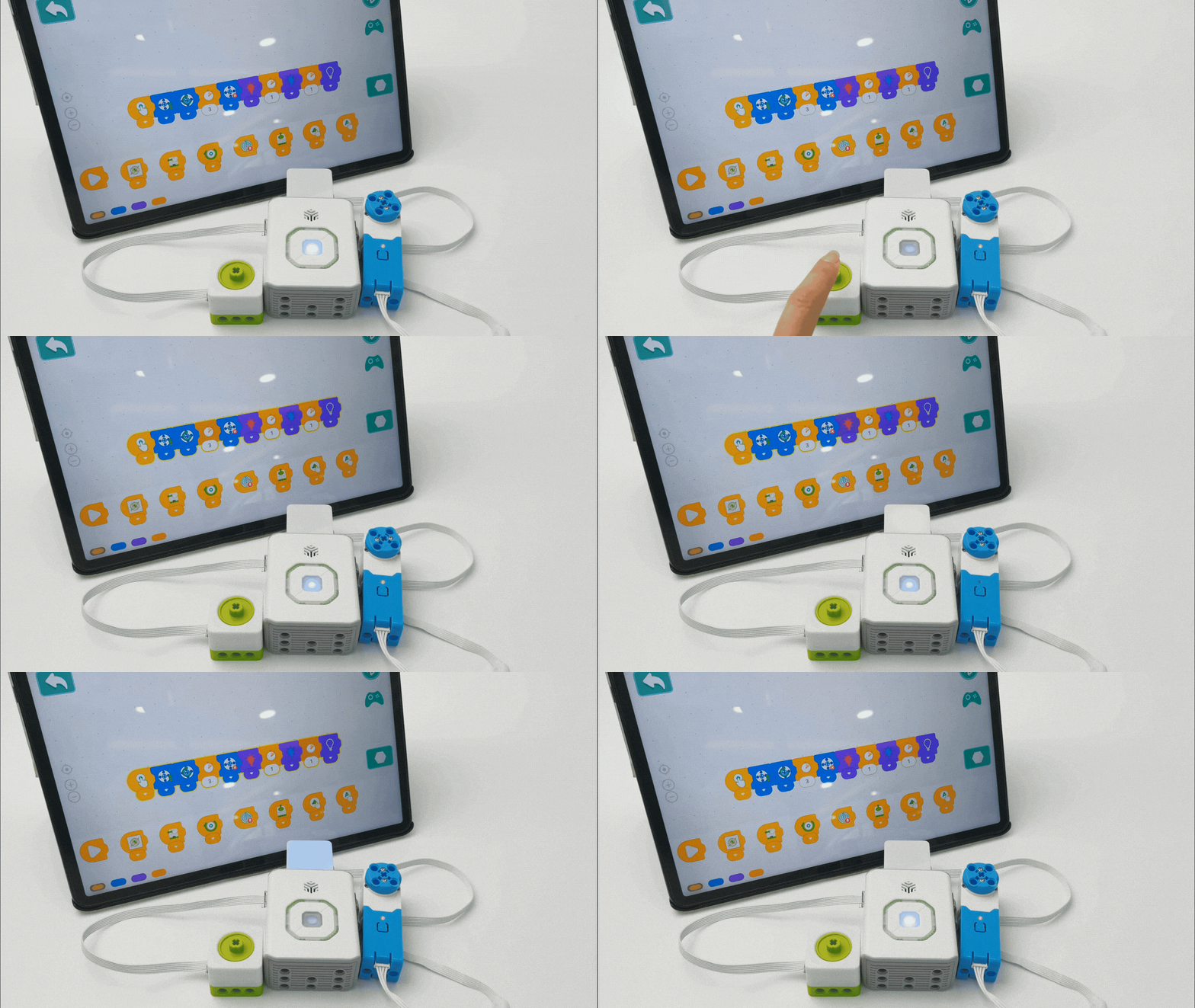
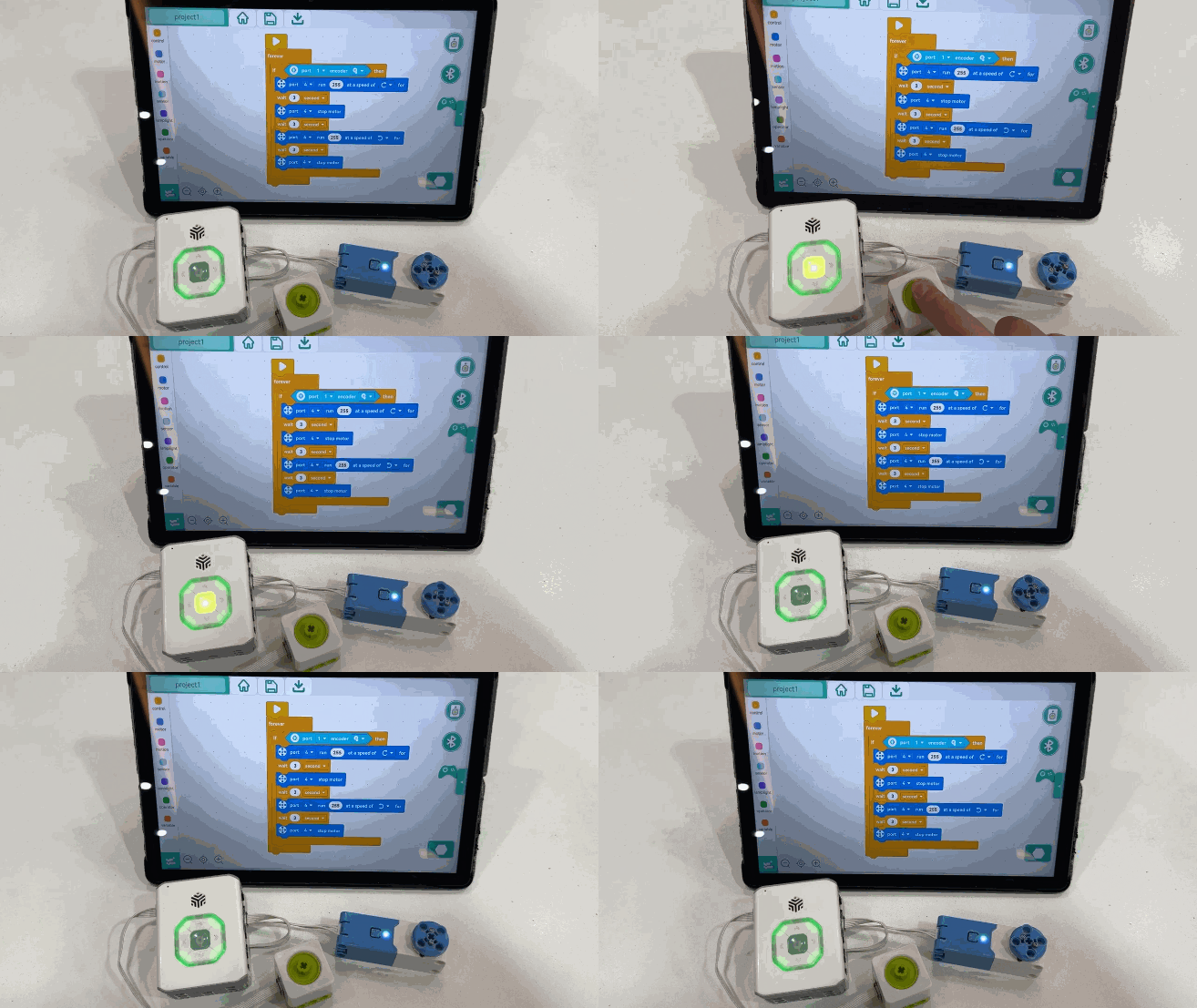
For detailed instructions, refer to the ICBricks Mobile Programming Software Guide.
ICrobot-Scratch Programming Mode
ICrobot-Scratch software is also compatible with ICBricks 2.0, providing an intuitive graphical programming interface for PC. Based on Scratch, it enables users to interact with hardware devices and the stage area, seamlessly integrating software and hardware.
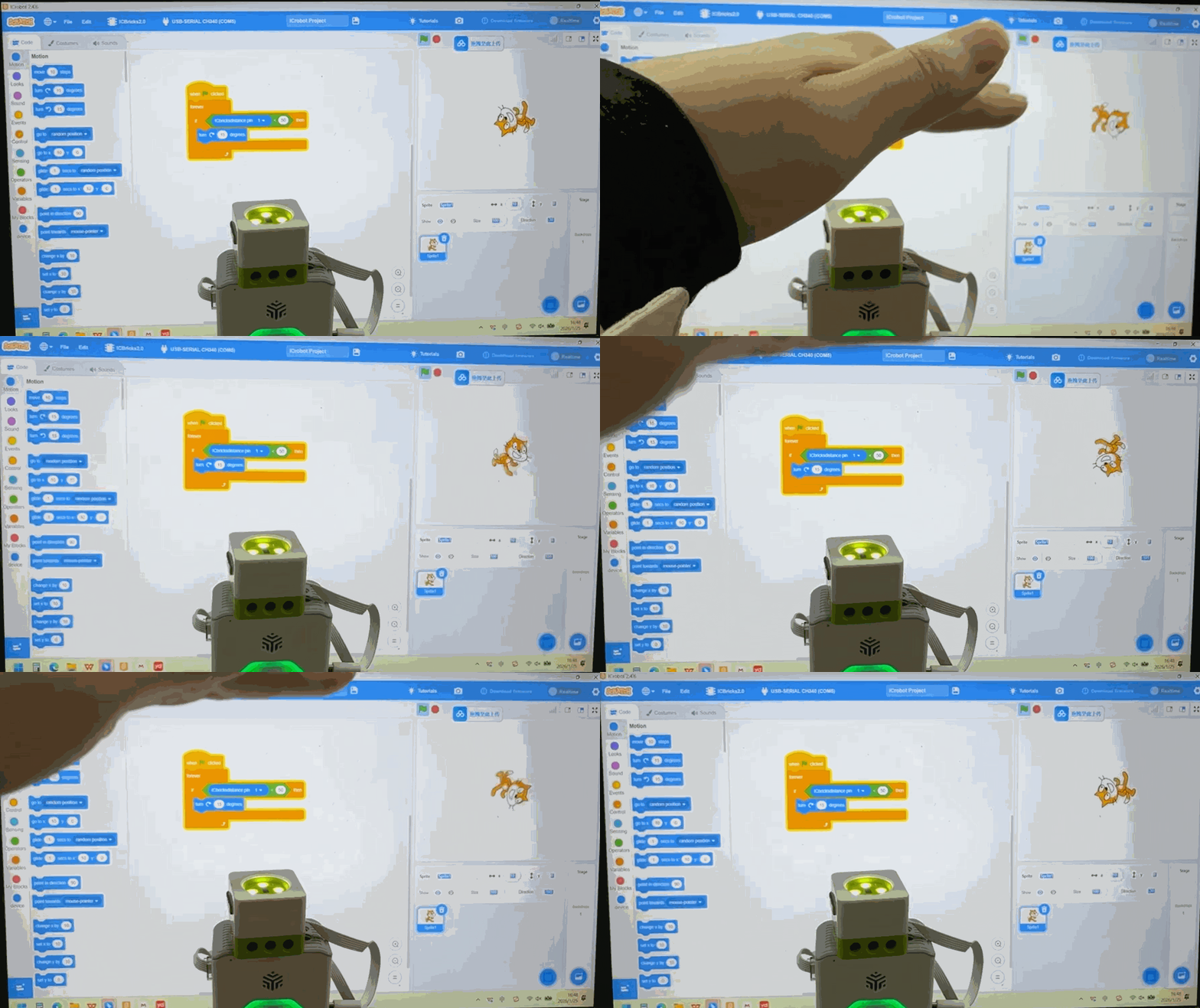
For detailed instructions, refer to the ICrobot-Scratch Programming Software Guide.
MicroBlocks Programming Mode
MicroBlocks is a real-time programming environment designed for rapid development and experimentation. Users can immediately run programs on the hub by simply clicking blocks, receiving instant feedback. This highly interactive environment makes programming intuitive, fast, and engaging. ICBricks 2.0 is fully compatible with MicroBlocks, allowing users to design control logic, operate hardware in real-time, and unleash creativity and flexibility.

For detailed instructions, refer to the MicroBlocks Programming Software Guide.