Firmware Upgrade Guide
ICBricks Hub Firmware Upgrade
Method 1:
Using the Firmware Upgrade Center: https://update.icrobot.cn/
|
|
|---|---|
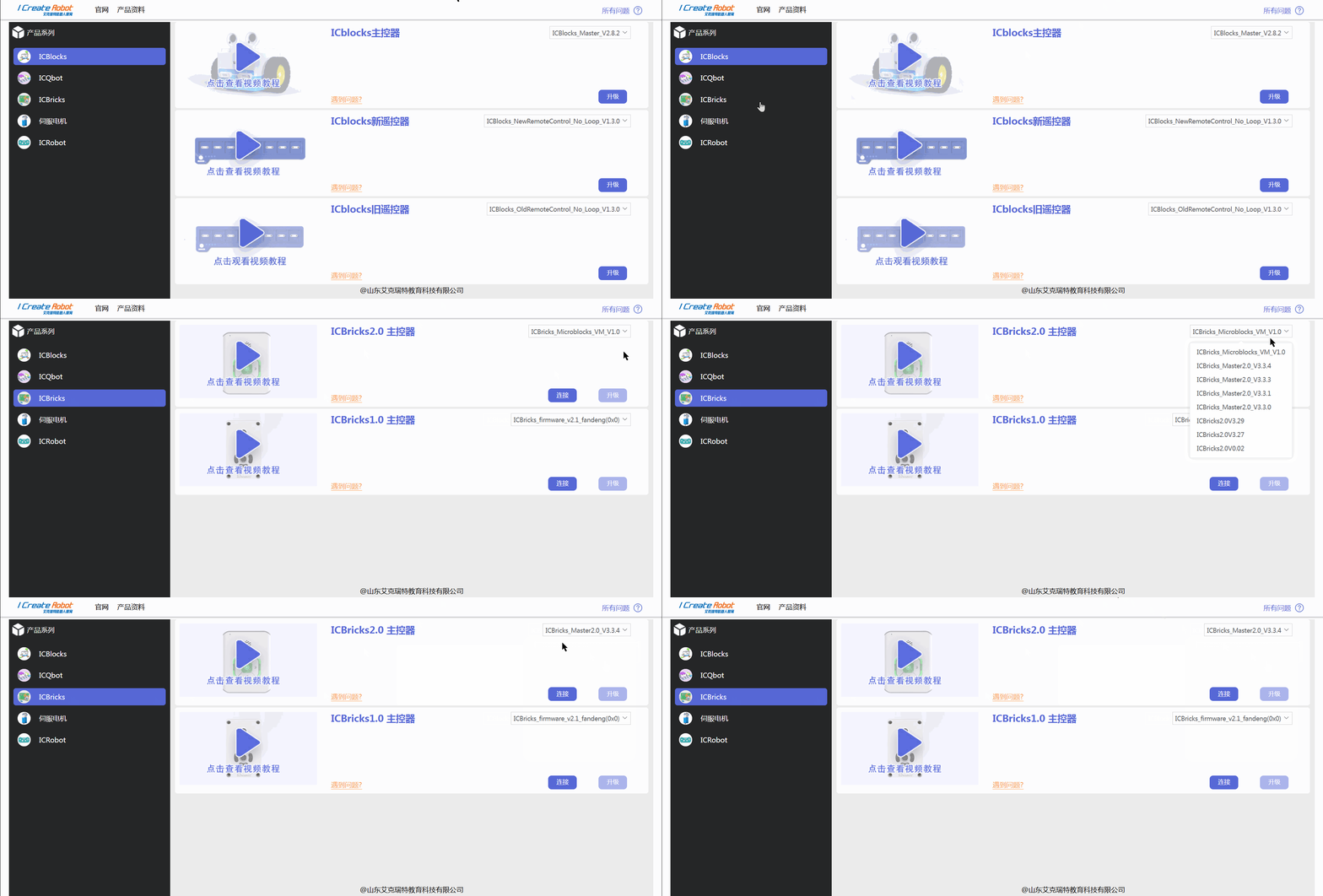
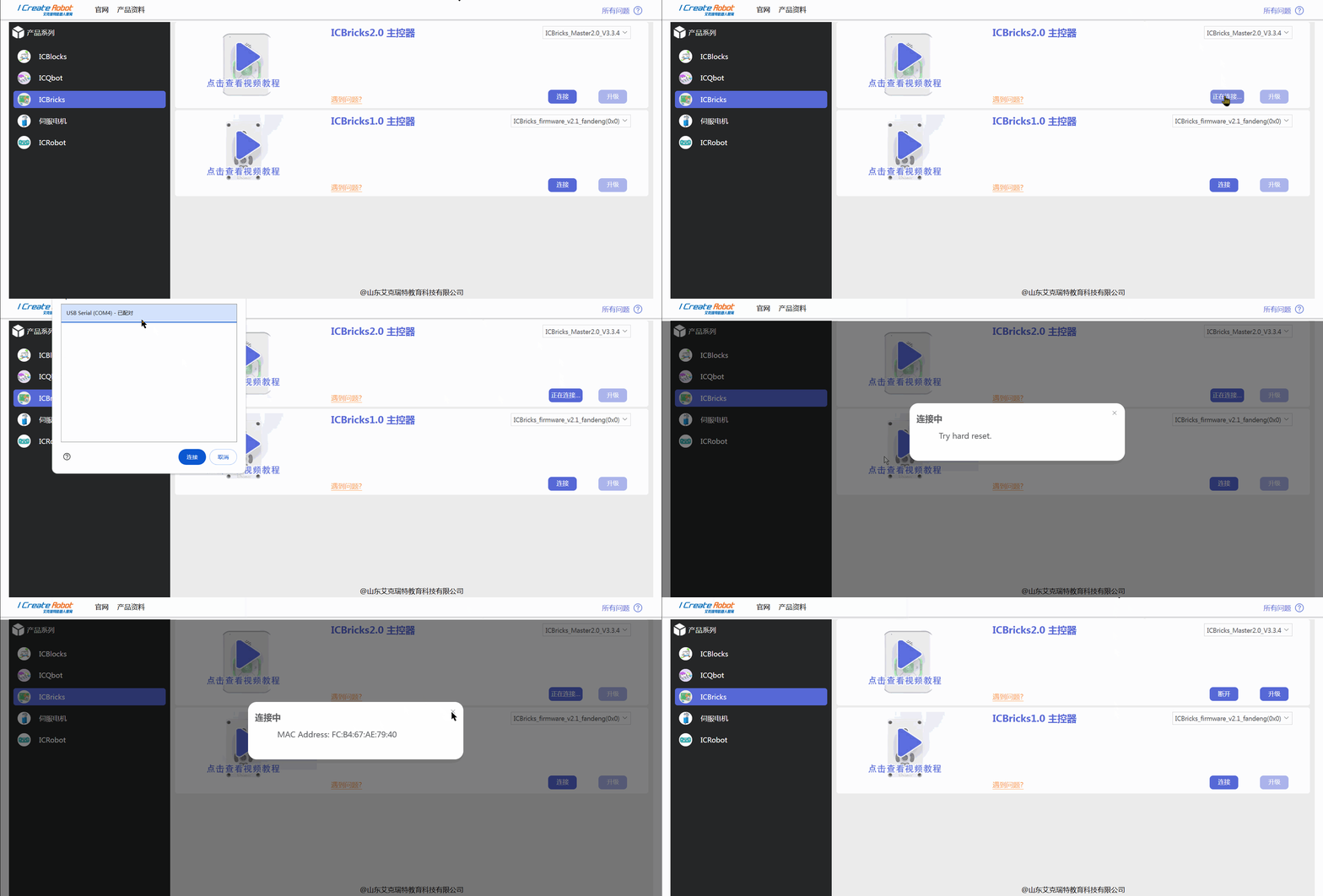
1、Open the ICBricks section, click on the hub version, and select the desired firmware version to upgrade. |
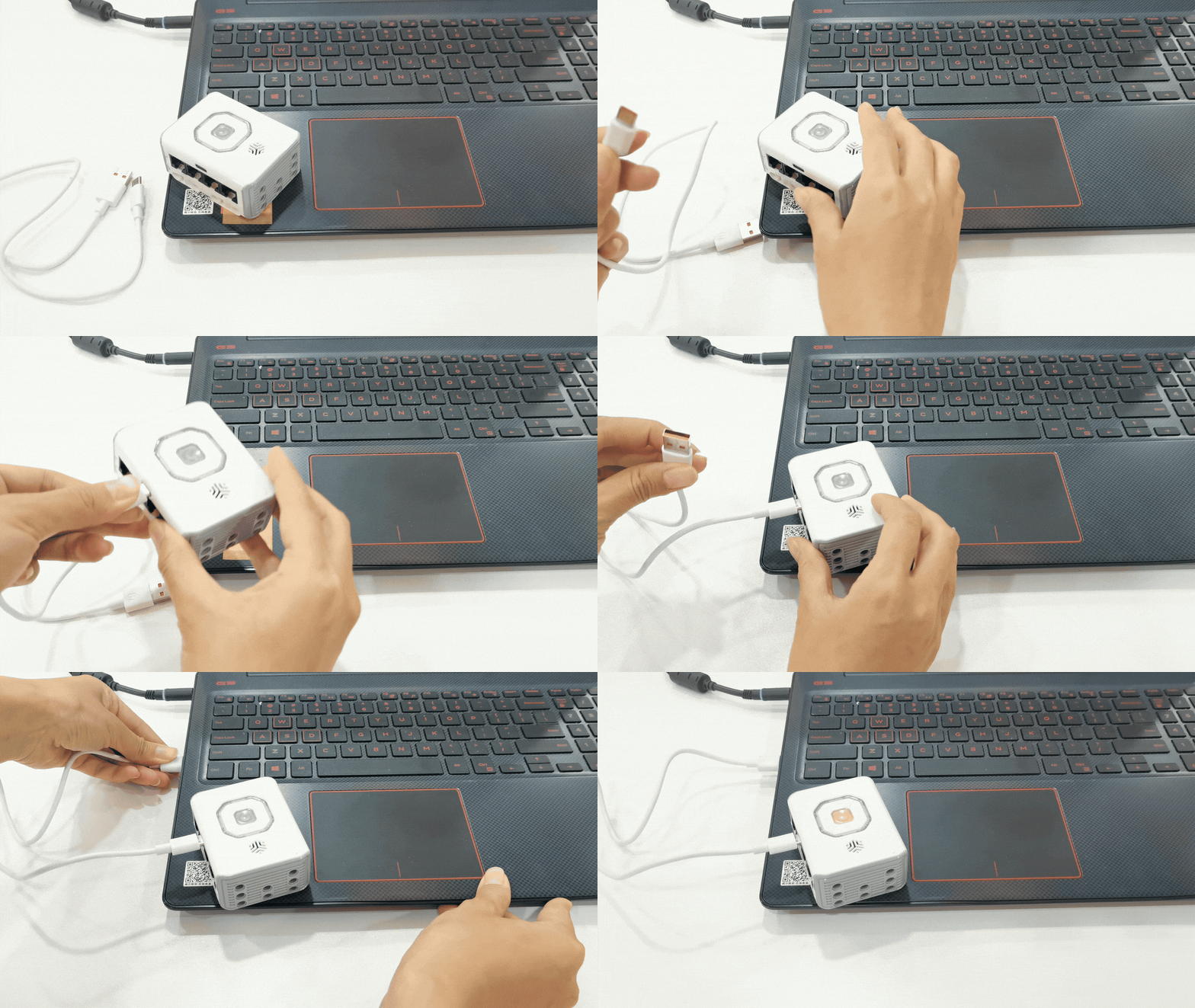
2、Prepare a data download cable and connect the hub to your computer. |
|
|
3、Click “Connect,” select the appropriate serial port in the pop-up window, and close it after a successful connection. |
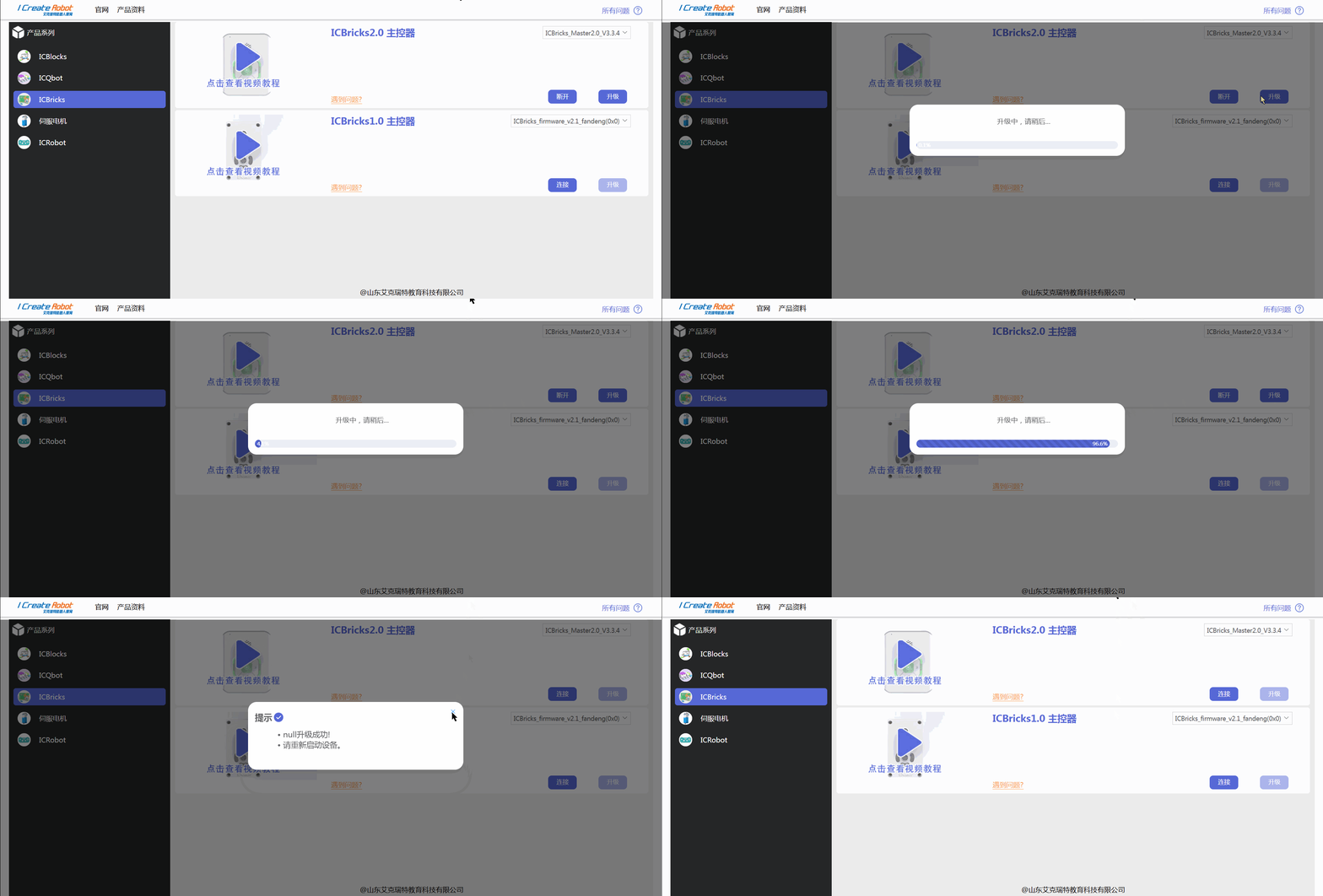
4、Click “Upgrade” and wait for the progress bar to complete. Restart the device after the upgrade finishes. |
Method 2:
Using the Flash Tool Download Link: https://www.icrobot.com/www/cn/index.html#/file/index?type2=ICBricks
|
|
|---|---|
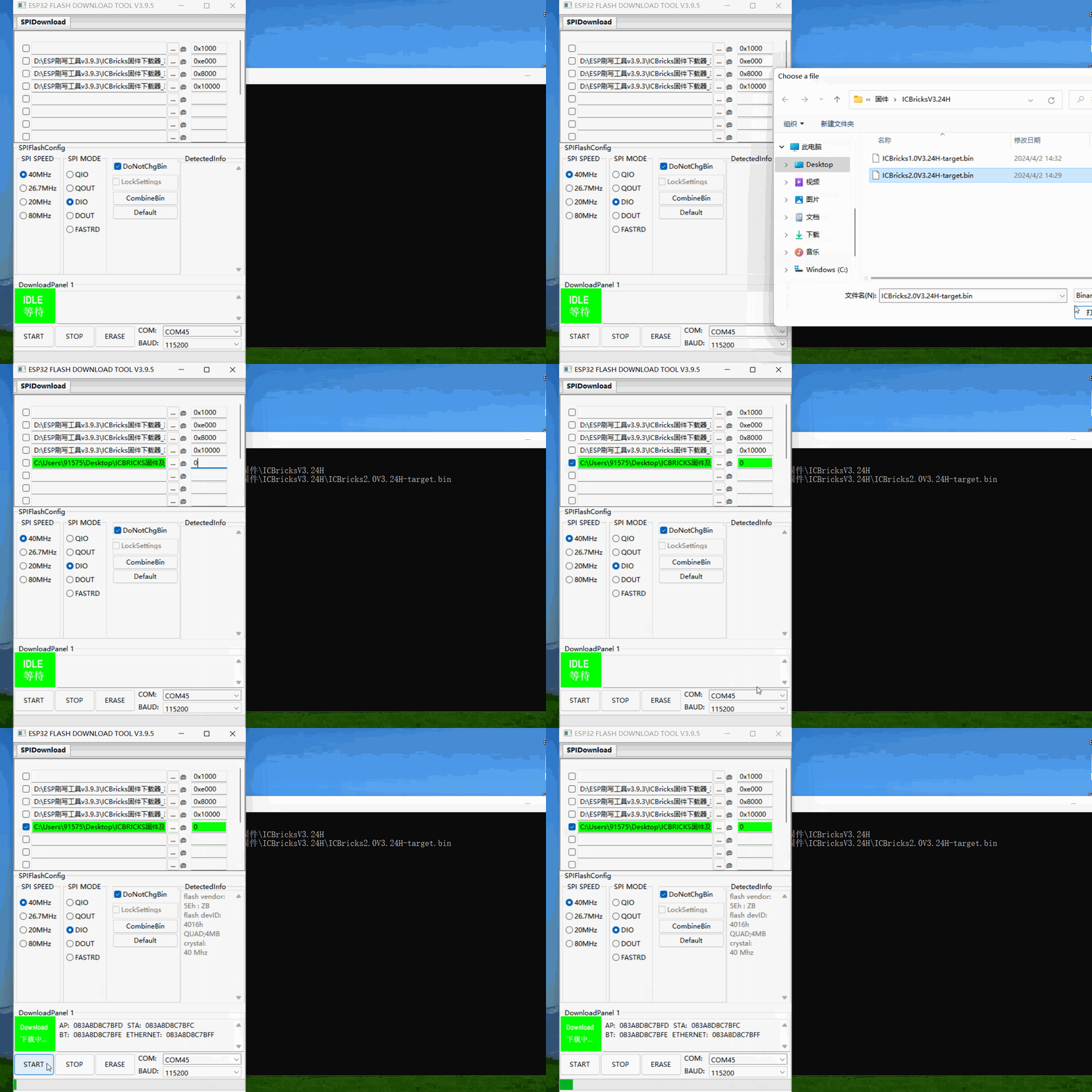
1、Connect the hub to your computer and open the flash tool. Select ESP32 and click “OK.” |
2、Click the end of the text box to select the desired firmware |
|
|
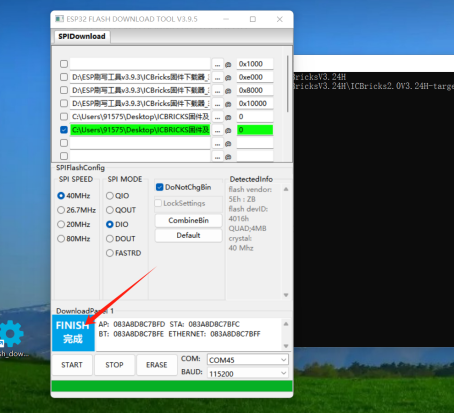
3、Once the progress bar completes, and the green indicator changes to a blue completion mark without any red error messages, the download is successful. |

Servo Motor Firmware Upgrade
|
|
|---|---|
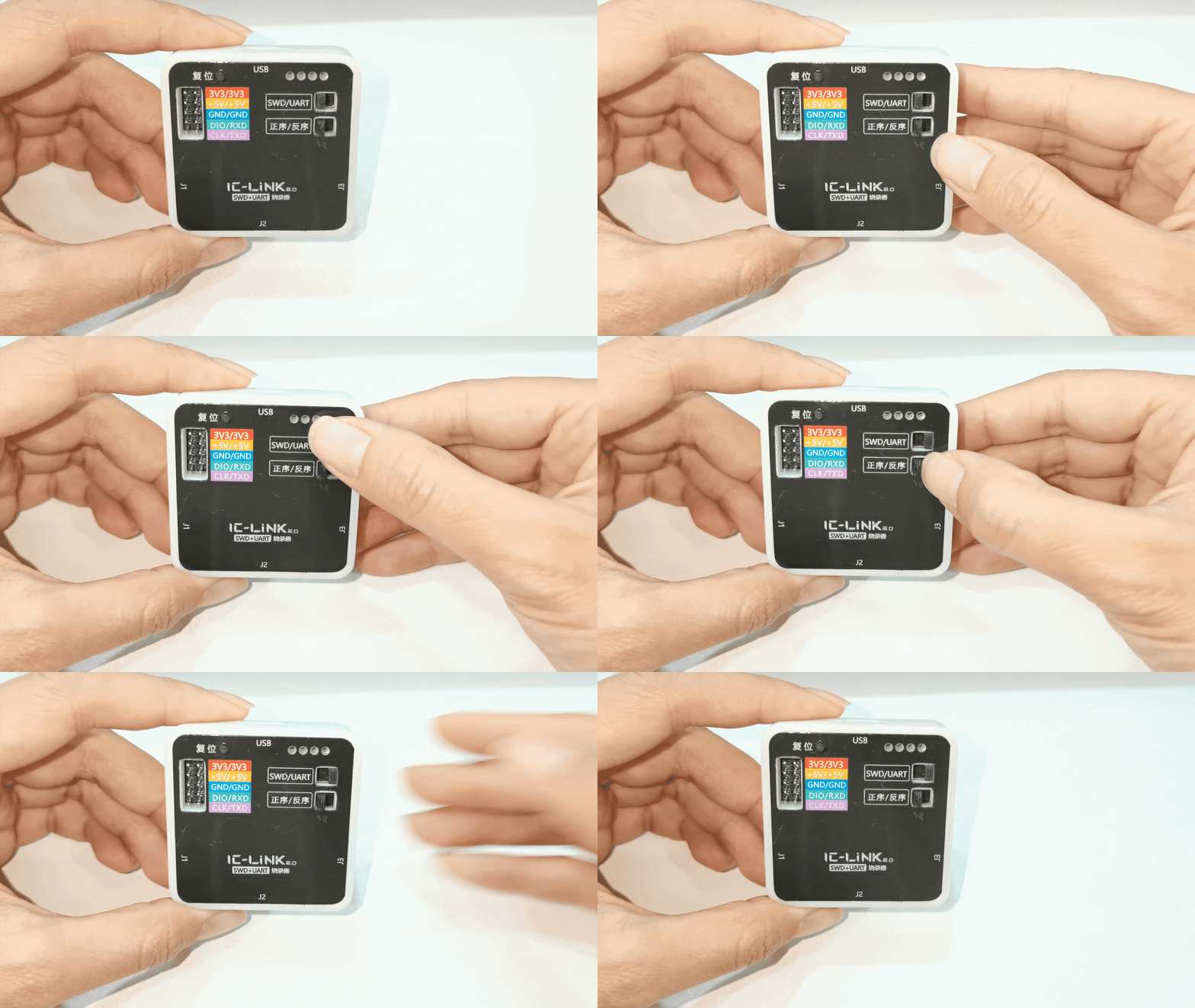
1、Prepare an IC-Link 2.0 Flasher, switch the SWD toggle to the right side and the Normal/Reverse toggle to the left side. |
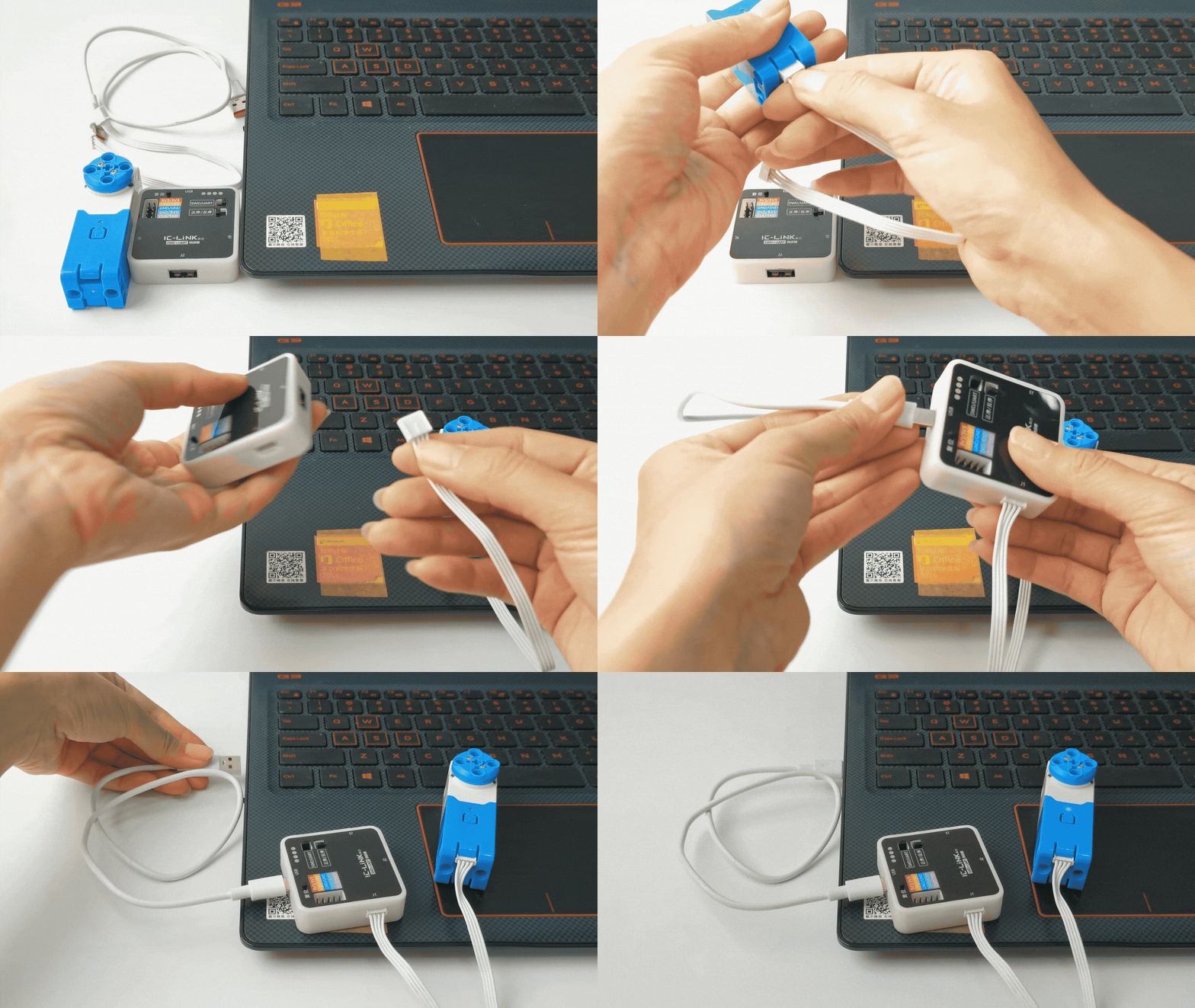
2、Use a grove cable to connect the servo motor to the J1 port of the Link Flasher, then connect the Link Flasher to your computer. |
|
|
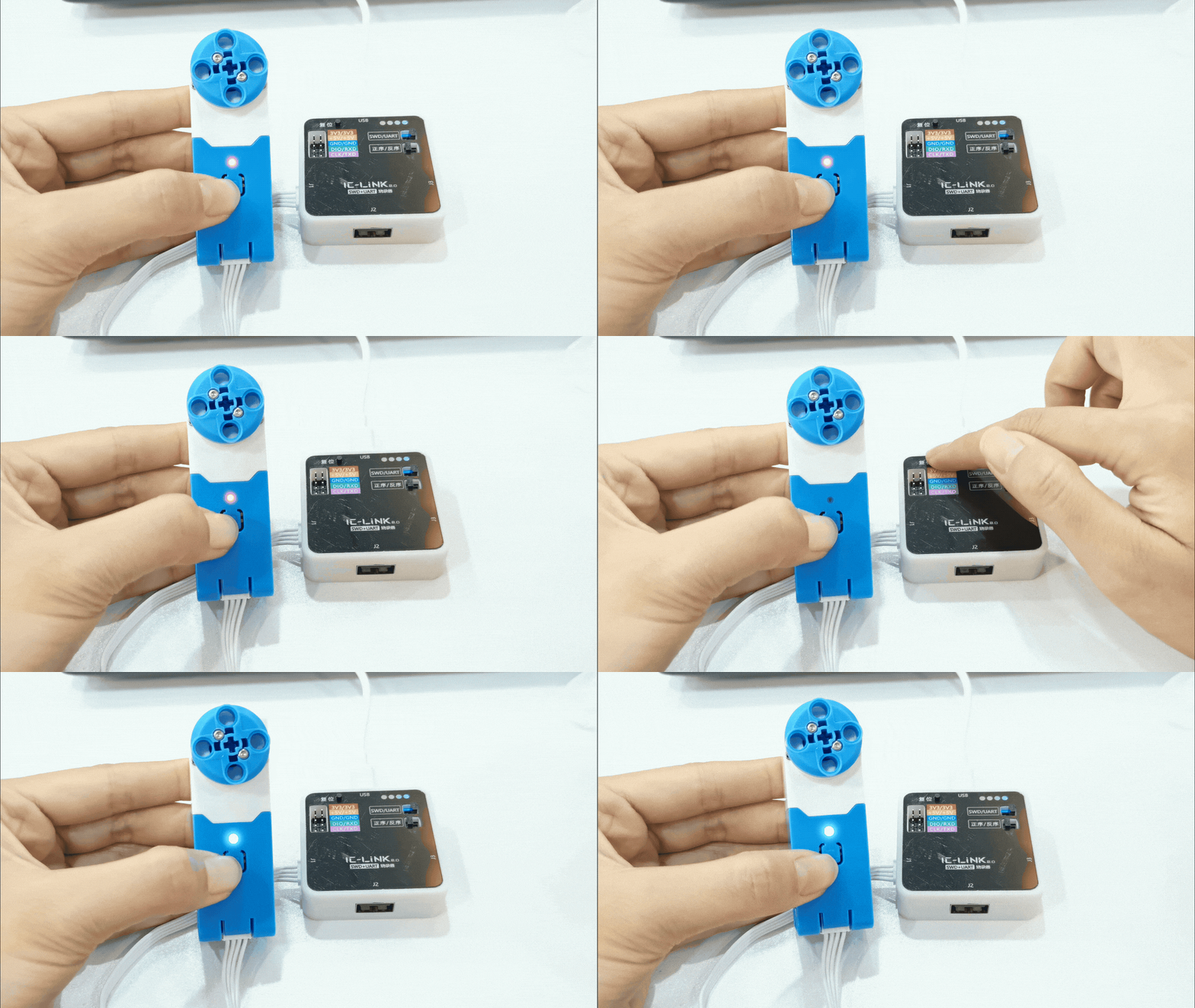
3、Long-press the motor’s center button while briefly pressing the reset button on the Link Flasher. The motor indicator light will switch to a rainbow mode. |
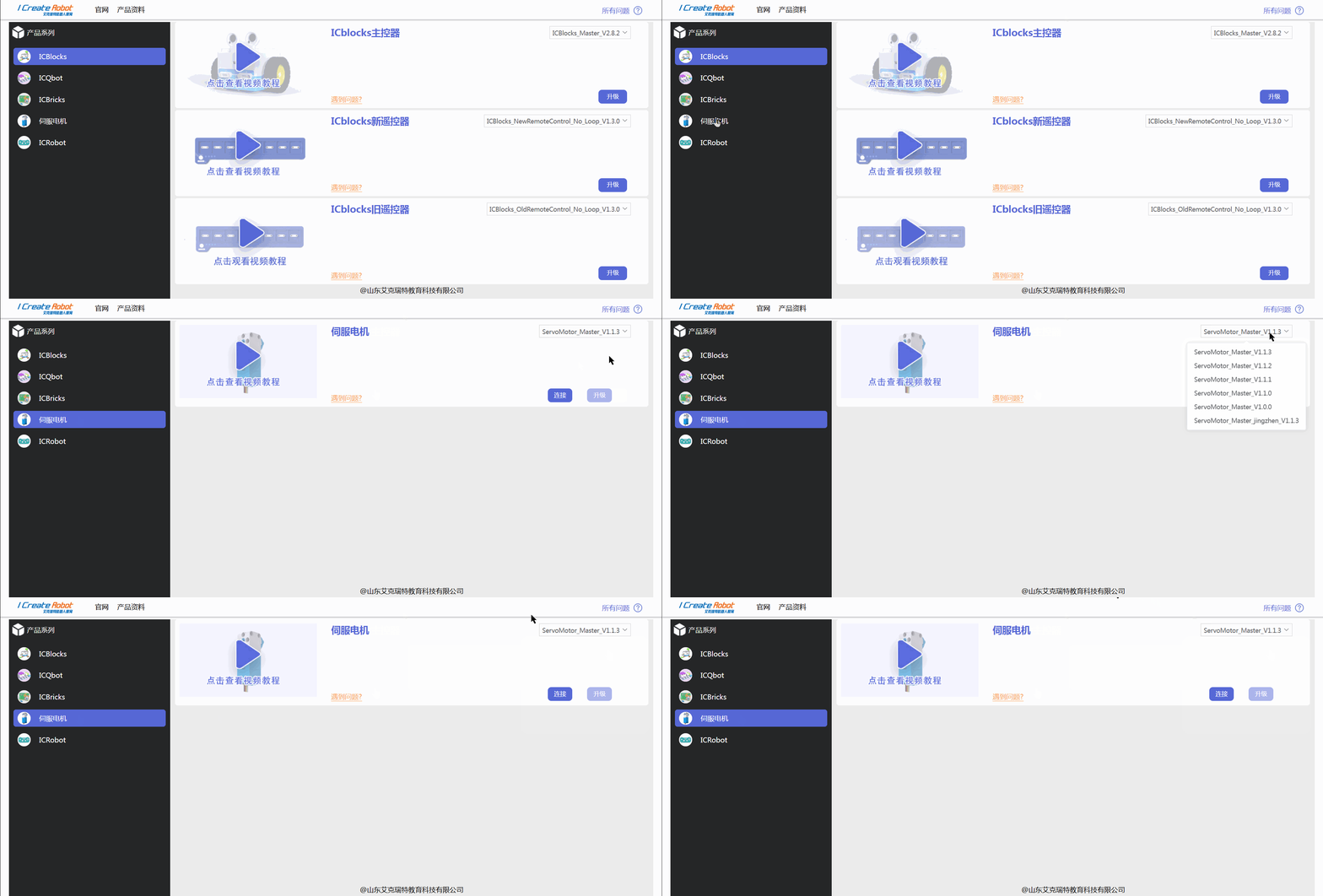
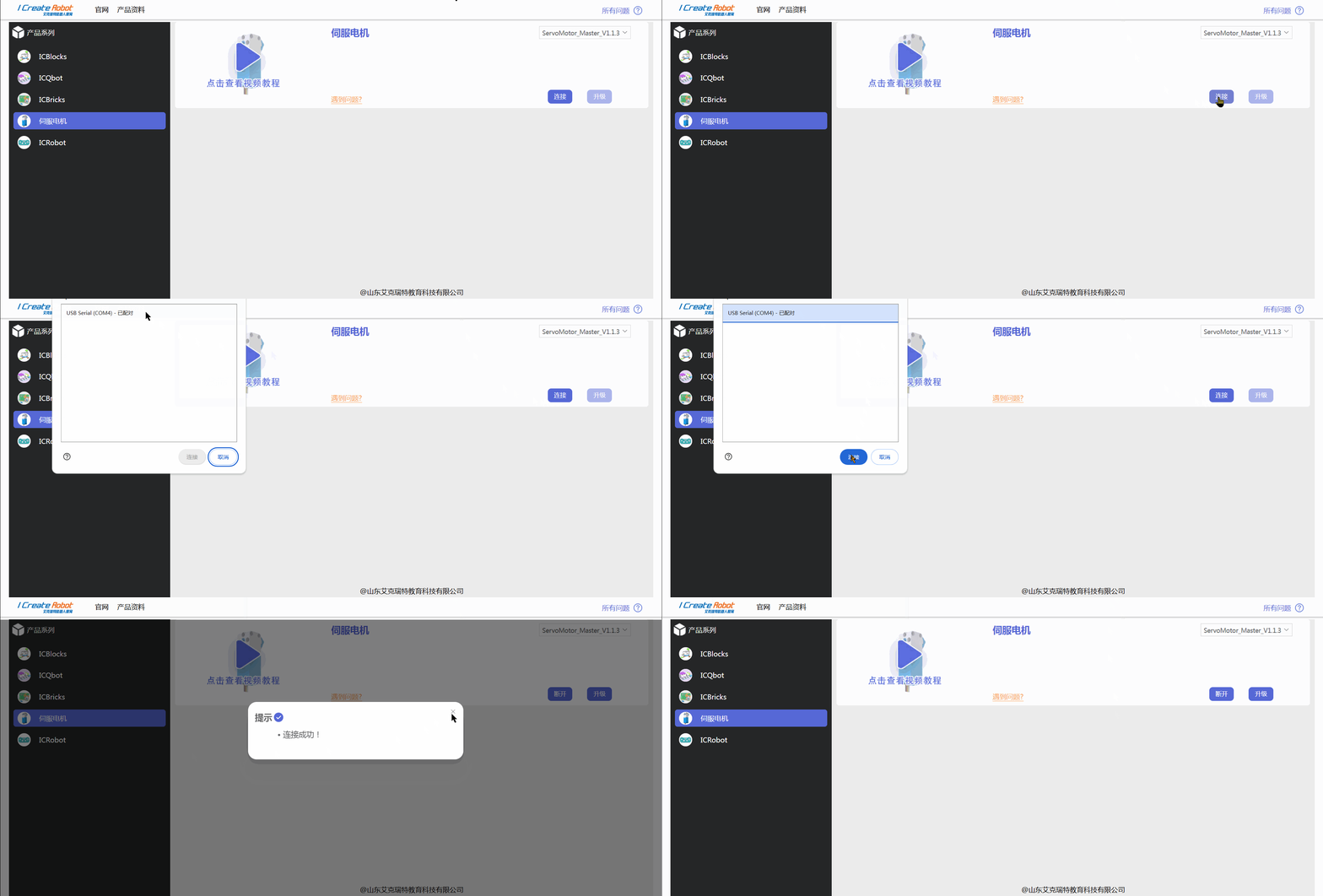
4、Open the Firmware Upgrade Center, select the servo motor, and choose the firmware version to upgrade. |
|
|
5、Click “Connect,” select the motor’s serial port, and close it after a successful connection. |
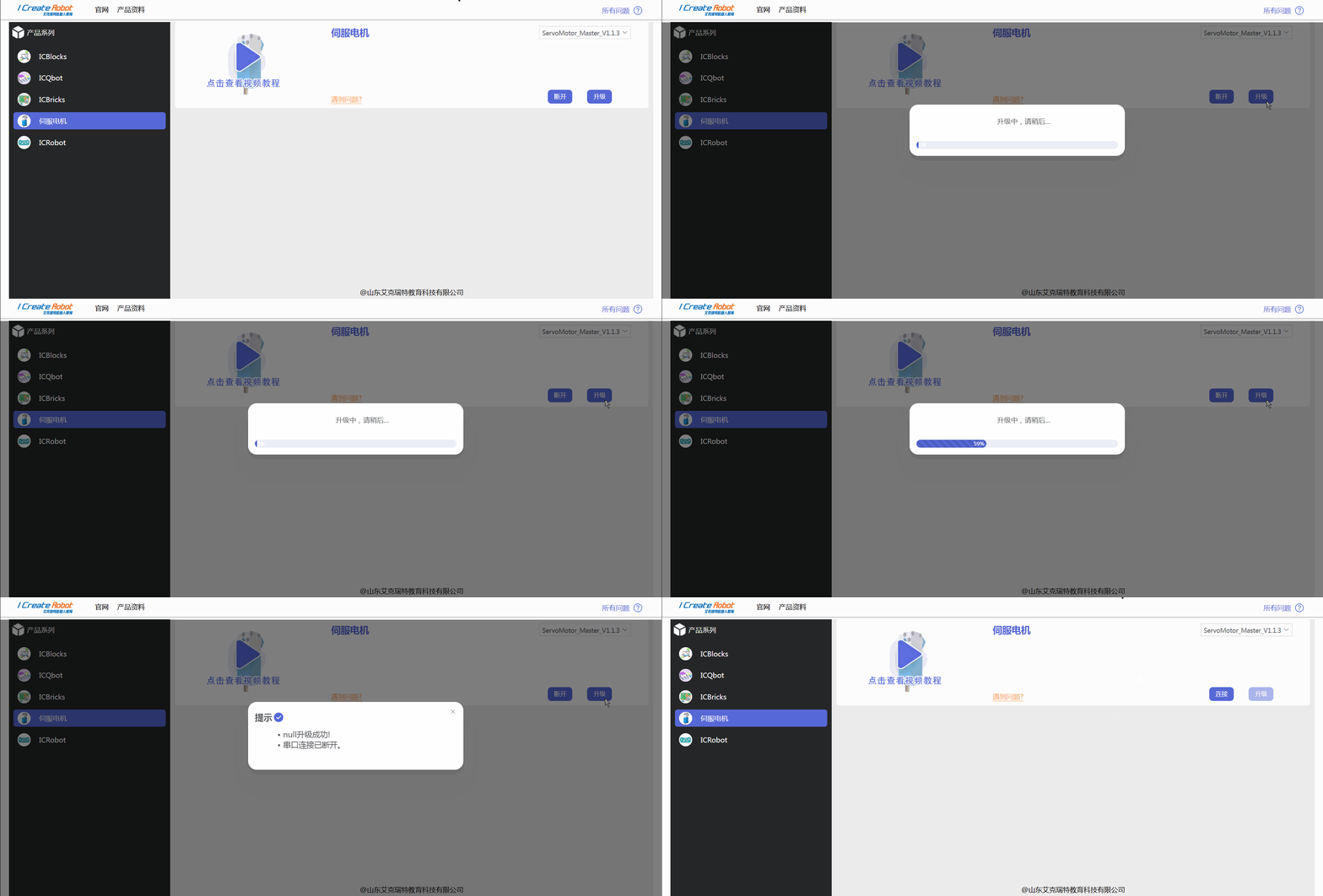
6、Click “Upgrade” and wait for the progress bar to complete. |